Step-by-Step Setup Instructions
Navigate to the Tableau Public download page to begin your free account registration
-
Complete the registration form with your professional information. Tableau requires basic details including your name, email address, and intended use case for the platform
-
Check your email for the verification message and click the confirmation link to activate your account, then sign in to the Tableau Public website
-
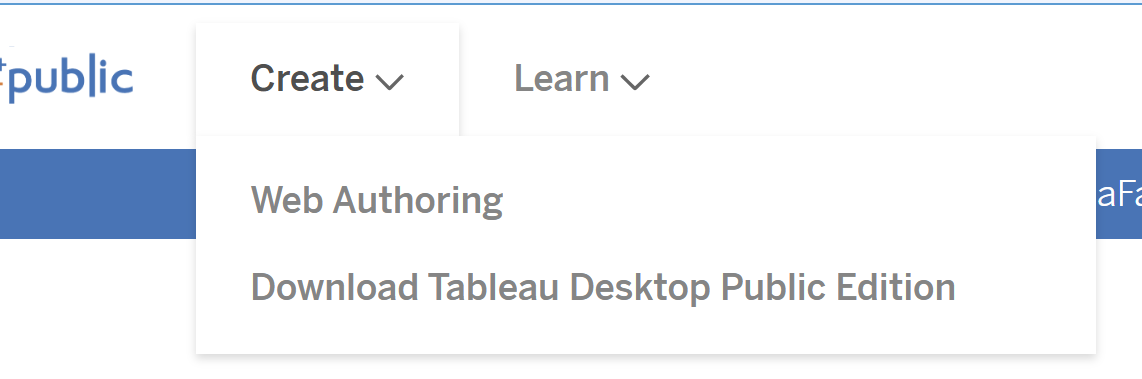
Once logged in, locate the "Create" dropdown menu in the top navigation bar and select "Download Desktop Public edition" to access the desktop application installer
-
The system may require you to authenticate your session again for security purposes. Simply re-enter your credentials when prompted
-
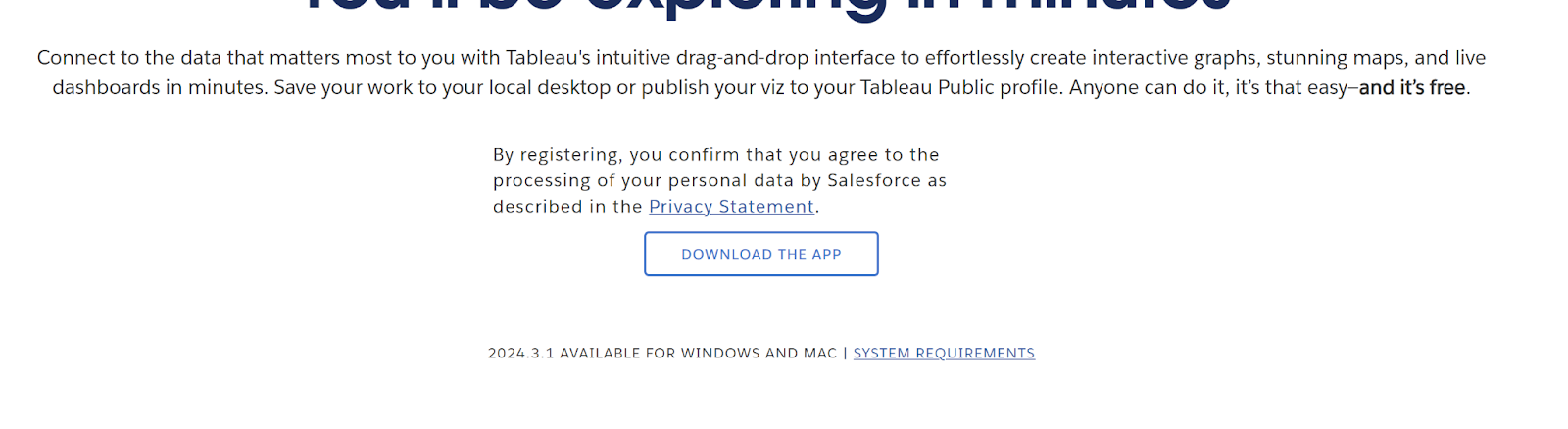
Click the prominent "Download the App" button to initiate the download process for Tableau Desktop Public Edition
-
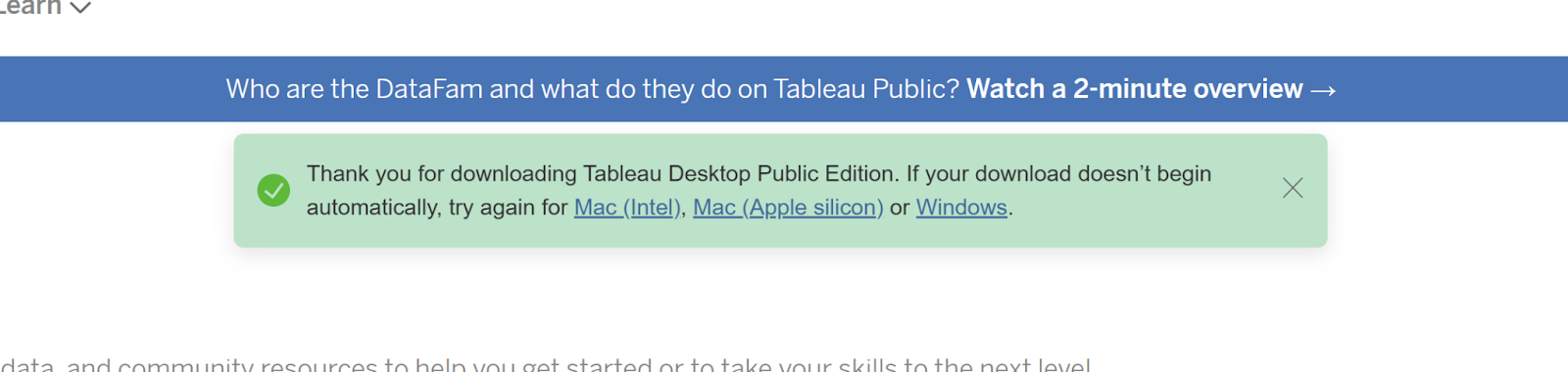
The download should commence automatically in your default browser location. If the automatic download fails, manually select your operating system (Windows, macOS, or Linux) from the options provided to download the appropriate installer package
-
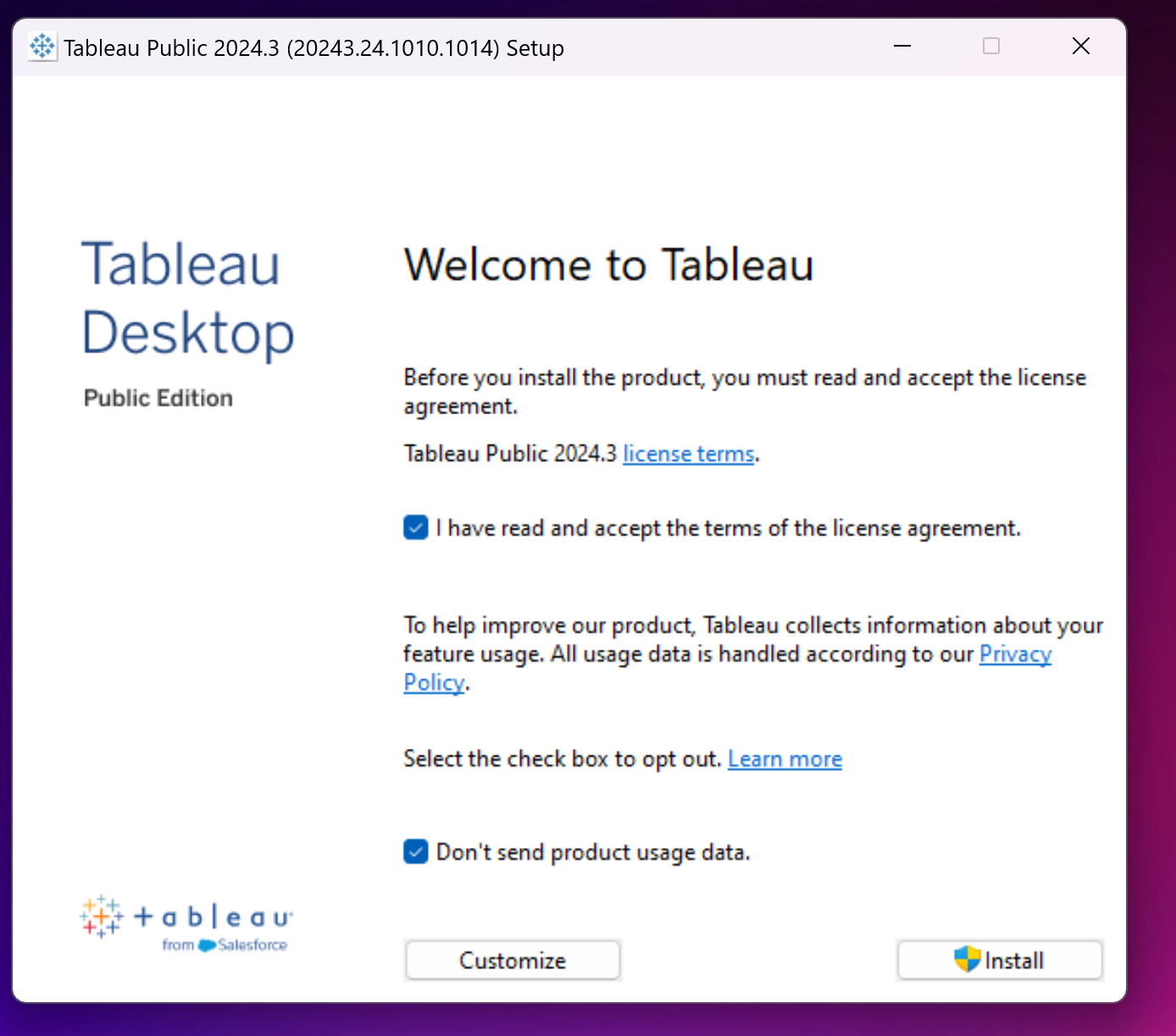
Launch the installer executable file from your downloads folder. On Windows, you may need to grant administrator permissions; on macOS, you might need to authorize the installation in System Preferences if your security settings block unverified developers
-
Carefully review and accept the Tableau Public Edition terms of service agreement. Note that the Public edition requires all published visualizations to be publicly viewable, making it ideal for portfolio work and public data storytelling rather than confidential business analytics
-
Upon successful installation, Tableau Desktop Public Edition will launch automatically, presenting you with the start screen where you can begin connecting to data sources and creating your first visualization
Installation Process Overview
Download Setup
Visit the official Tableau Public download page and provide your personal information to access the installer
Email Verification
Confirm your email address and sign in to the webpage to proceed with the download
Download Application
Select Download Desktop Public edition from the Create menu and download the installer for your operating system
Installation
Run the installer, agree to the terms of service, and the application will launch automatically upon completion
Pre-Installation Requirements
Required for account creation and email verification
Needed for downloading the installer and account verification
Required to install software on your computer
Ensure adequate storage for the application installation
If the automatic download doesn't start, don't worry. The page will provide options to manually select your operating system and download the appropriate installer.
Tableau Public vs Desktop
Remember that all visualizations created with Tableau Public are publicly visible. Do not use sensitive or private data in your projects.