Importing Word Documents
Microsoft Word documents remain a cornerstone of professional workflows, making seamless integration with InCopy essential for editorial teams. Whether you're working with manuscripts from freelance writers or importing content from other departments, InCopy's placement feature offers sophisticated control over how Word formatting translates into your publication layout. Understanding these import options upfront can save significant time during the production process.
Placing a Word File into InCopy
With your InCopy document open, position the text cursor
 precisely where you want the imported content to begin. This placement point determines the flow of your imported text within the existing layout.
Navigate to File > Place to access InCopy's import dialog.
Select your target Word file with a single click. The dialog will display file details and format information to confirm you're importing the correct document.
To maintain control over formatting decisions, check Show Import Options at the bottom of the dialog window. Note that you may need to click the Options button to reveal this crucial setting. This step is essential for professional workflows where formatting consistency matters.
Click Open to proceed with the import process.
If you enabled Show Import Options, InCopy will present a comprehensive dialog for managing Word formatting. Your choice here directly impacts how the imported content integrates with your existing publication styles. The following sections detail the optimal approach for different scenarios.
The import options you choose depend largely on your publication's style guide requirements and whether the Word document follows established formatting conventions. Consider your downstream production needs before making these decisions.
Basic Word Document Import Process
Position Text Cursor
Open your InCopy document and place the text cursor at the exact location where you want the imported Word content to appear.
Access Place Command
Navigate to File menu and select Place to open the file selection dialog for importing external documents.
Select Word File
Click once on your target Word file to select it, then optionally check Show Import Options for formatting control.
Execute Import
Click Open to import the file, which will display formatting options if Show Import Options was enabled.
The Show Import Options checkbox may be hidden behind an Options button at the bottom of the Place dialog window. Click Options if you don't see it immediately.
To Remove Word Formatting
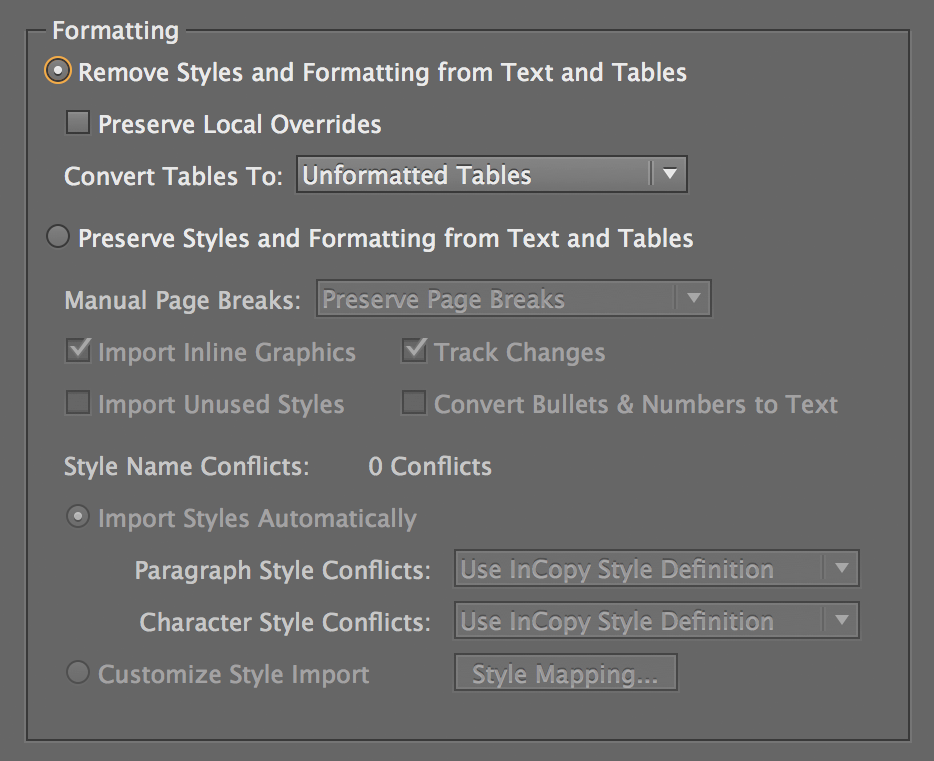
This approach works best when importing content that will be completely restyled according to your publication's design standards, or when Word documents contain inconsistent or problematic formatting:
Select Remove Styles and Formatting to strip away all Word-specific styling. This creates a clean slate for applying your publication's established paragraph and character styles.
Click OK to complete the import process.
Professional Tip: Enable Preserve Local Overrides to maintain essential character formatting such as italics, bold text, and manual emphasis that carries editorial meaning. This setting strikes an optimal balance between clean import and preserving author intent.
Removing formatting is particularly valuable when working with content from multiple contributors who may have applied inconsistent styling, or when importing drafts that need to conform to strict publication guidelines.
Formatting Removal Options
Remove Styles and Formatting
Strips all Word formatting and styles from imported content. Creates clean text that adopts your InCopy document's default formatting rules.
Preserve Local Overrides
Optional setting that maintains basic character formatting like bold and italic text while removing paragraph styles and complex formatting.
Removing Word Formatting
To Maintain the Formatting from Word
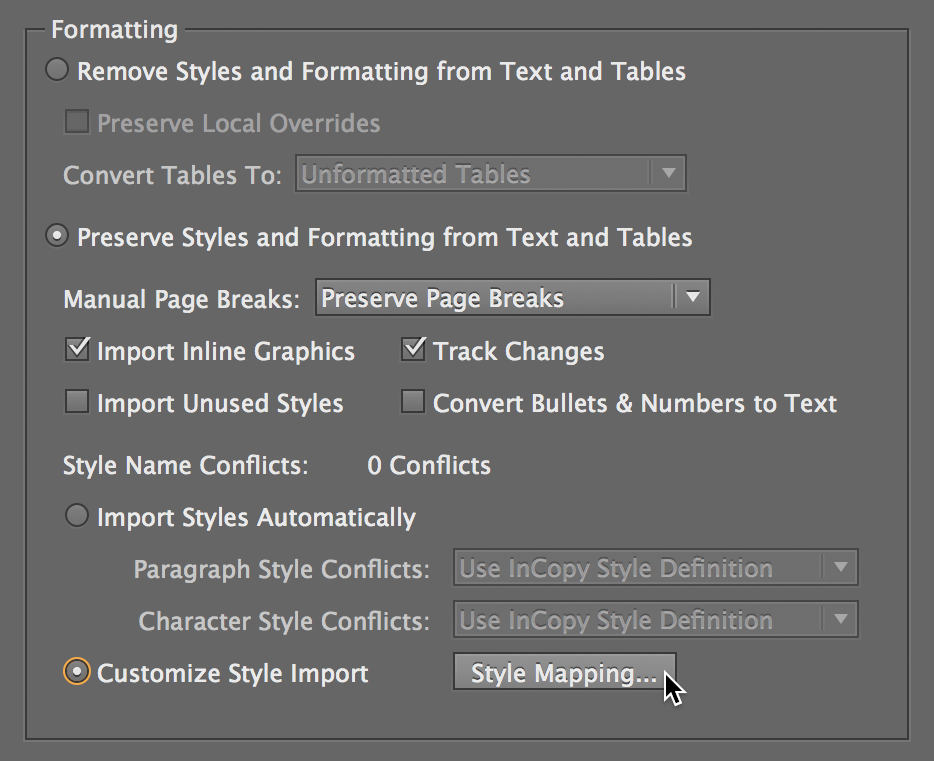
Choose this method when the Word document already follows your style conventions or when you need to preserve the author's original formatting intentions:
Select Preserve Styles and Formatting to maintain the document's original appearance and structure.
- For documents with established style systems that need integration with your InCopy workflow, utilize the advanced mapping feature:
- Select Customize Style Import to access granular control over style translation.
- Click the Style Mapping button to open the comprehensive mapping interface.
- In the mapping dialog shown below, systematically match each Word style (left column) with its corresponding InCopy style (right column). This creates a reusable template for future imports from the same source or style system.
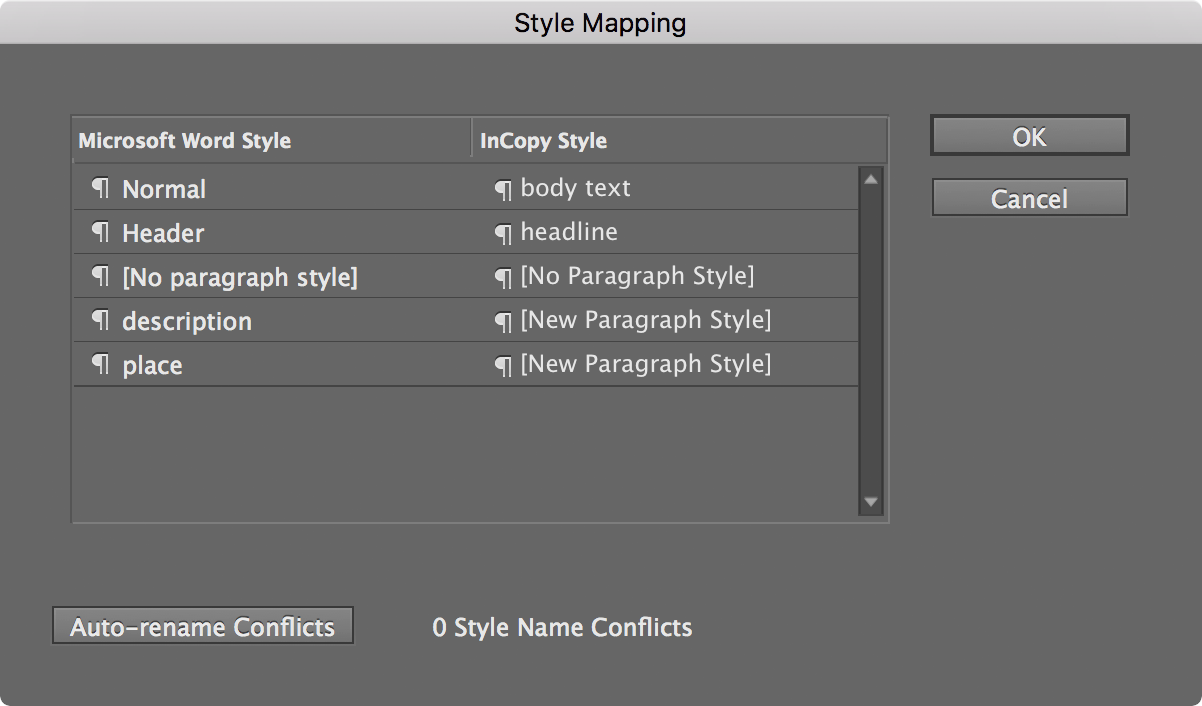
Style mapping proves invaluable for publications that regularly receive content from the same contributors or when working with standardized document templates. The time invested in proper mapping pays dividends across multiple import cycles, ensuring consistency while preserving the editorial workflow's efficiency.
Preserving Word Formatting Process
Select Preserve Option
Choose Preserve Styles and Formatting to maintain the original Word document's styling and paragraph formatting.
Enable Style Customization
Select Customize Style Import to gain control over how Word styles are converted into InCopy equivalents.
Map Styles
Click Style Mapping button to open the style correspondence interface for precise formatting control.
Configure Mappings
Match Word styles in the left column with corresponding InCopy styles in the right column for seamless integration.
Formatting Approach Comparison
| Feature | Remove Formatting | Preserve Formatting |
|---|---|---|
| Style Consistency | High | Variable |
| Setup Time | Minimal | Moderate |
| Design Fidelity | Low | High |
| Manual Work Required | Extensive | Limited |
When mapping styles, focus on matching similar paragraph types first, such as headings to headings and body text to body text, to maintain document hierarchy.