What is Git?
Git is the industry standard for version control, powering software development at organizations from startups to Fortune 500 companies. At its core, Git meticulously tracks every change you make to files, creating an immutable record of your project's evolution. This means you can confidently experiment, knowing you can always revert to any previous state. More importantly, Git transforms collaboration from a coordination nightmare into a seamless workflow, intelligently merging contributions from multiple developers into a single, coherent codebase.
Whether you're a solo developer building the next breakthrough application or part of a distributed team managing enterprise software, Git isn't just useful—it's indispensable. In today's development landscape, Git proficiency is as fundamental as knowing your programming language of choice.
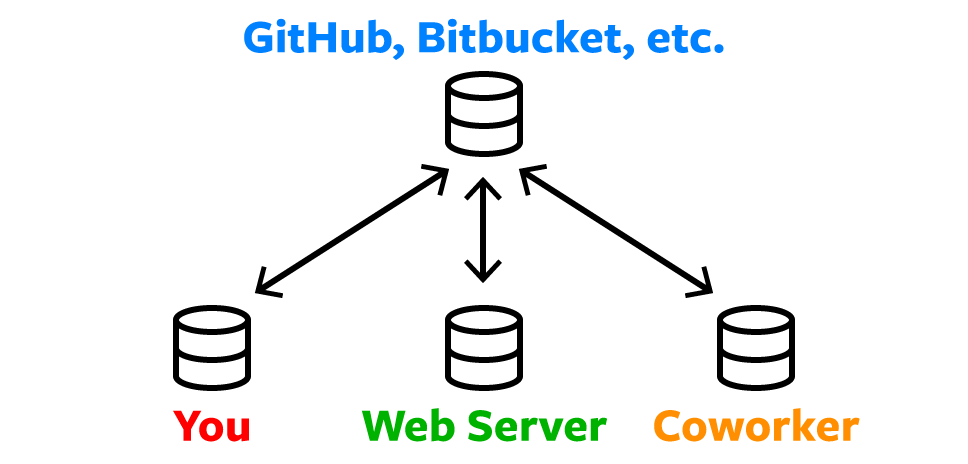
Git operates as a distributed system, meaning your complete project history lives locally on your machine, ensuring you can work productively even without internet access. However, the real power emerges when you combine local Git repositories with cloud-based hosting platforms like GitHub, GitLab, or Bitbucket. These platforms serve as central collaboration hubs where teams can synchronize changes, conduct code reviews, and manage releases. Git's sophisticated merging algorithms can automatically reconcile changes from multiple contributors, even when they've modified different sections of the same file—a capability that makes modern collaborative software development possible.
Core Benefits of Git
Track Changes
Keep a complete record of file modifications and revert to specific versions when needed. Perfect for maintaining code history.
Enable Collaboration
Multiple developers can work simultaneously and merge changes into one source without conflicts or data loss.
Local Storage
Files and revision history are stored locally on your computer, ensuring you always have access to your project.
Ways to Use Git
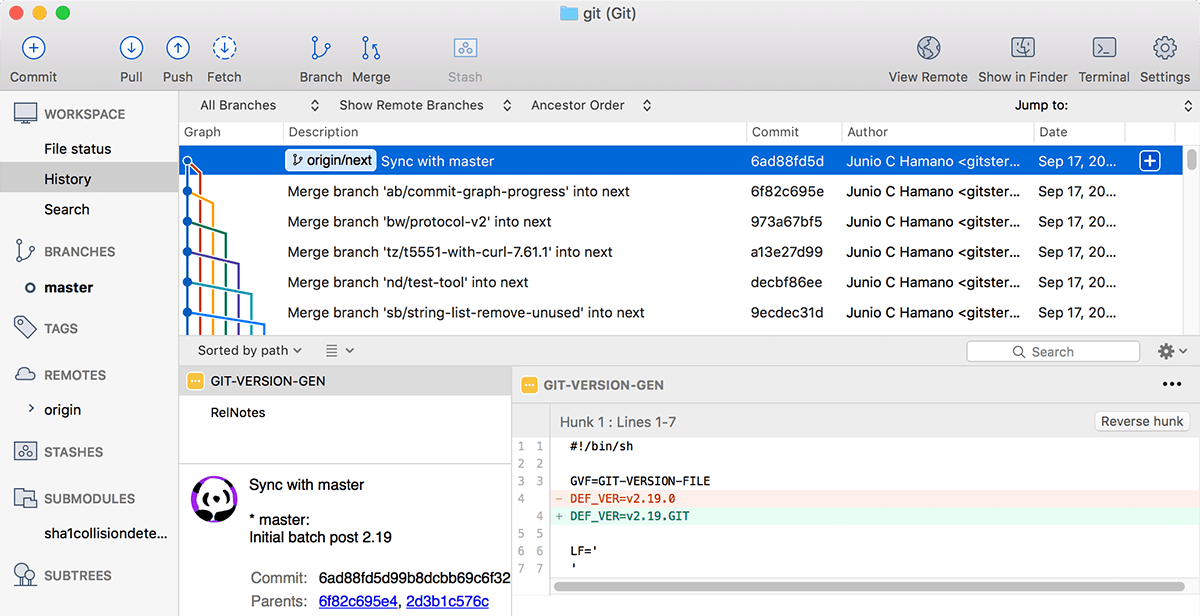
Git's flexibility extends to how you interact with it. You can harness Git's full power through the command line interface—the preferred method for many experienced developers who appreciate its speed and precision. Alternatively, if you prefer visual interfaces, robust desktop applications like Sourcetree, GitKraken, or the integrated Git tools in modern IDEs like VS Code provide intuitive graphical representations of your repository's structure and history.
Git Access Methods
| Feature | Command Line | GUI Applications |
|---|---|---|
| Interface Type | Terminal/CLI | Graphical Interface |
| Learning Curve | Steeper | Gentler |
| Functionality | Full Access | Core Features |
| Best For | Advanced Users | Beginners |
Git Repositories
A Git repository (commonly shortened to repo) is the foundation of any Git-managed project. It encompasses not only your current project files but also the complete historical record of every change ever made. Creating a repository is straightforward: you transform an ordinary project folder into a Git repository with a single command, which creates a hidden .git directory containing all the metadata Git needs to track your project's evolution.
This .git folder is intentionally hidden on Unix-based systems like macOS and Linux (any file or folder beginning with a period is hidden by default), keeping your workspace clean while Git works behind the scenes. While you won't see it in Finder or most file explorers without explicitly showing hidden files, this directory is where Git performs its magic—and it's fascinating to explore if you're curious about Git's inner workings.
Creating a Git Repository
Choose Your Folder
Take any ordinary folder containing project files, such as a website's root folder
Initialize Repository
Tell Git to make it a repository, which creates the tracking infrastructure
Git Metadata Created
A hidden .Git subfolder is created containing all metadata for tracking changes
The .Git folder is hidden by default on Unix-based systems like macOS. You may need to show hidden files in Finder or use a code editor to see it.
Stage & Commit Files
Understanding Git's staging and commit process is crucial to wielding its power effectively. Git doesn't automatically track every change you make—instead, it gives you precise control over what gets recorded in your project's history through a two-step process called staging and committing.
When you're ready to save a snapshot of your work, you first stage your changes using Git's add command. This staging area acts as a preparation zone where you can carefully curate exactly which changes should be included in your next commit. This granular control is invaluable in real-world development scenarios: imagine you're debugging a complex issue and have temporary logging statements scattered across multiple files, but you've also implemented a new feature that's ready for production. With Git's staging area, you can commit only the feature code while leaving your debugging changes unstaged, maintaining a clean, professional project history.
Git Commit Workflow
Stage Files
Use the add command to stage specific files you want to include in the commit
Review Staged Changes
Verify that only the intended files are staged and ready for commit
Commit Changes
Record the staged changes as a commit with a descriptive message
Staging allows selective commits when working on multiple files. You can commit only completed features while keeping work-in-progress files unstaged.
Remote Repositories (on GitHub & Bitbucket)
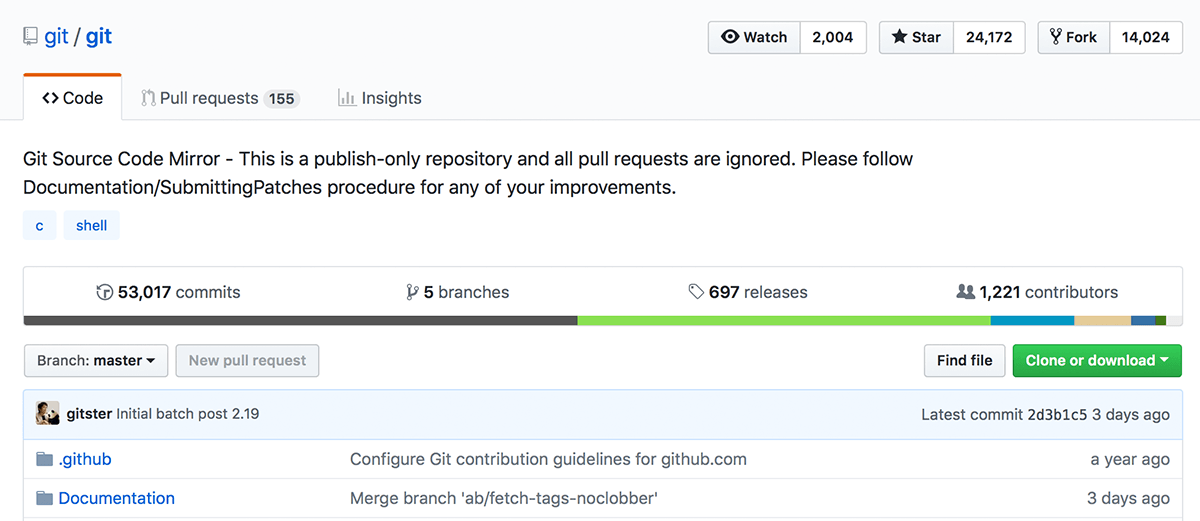
The true power of Git emerges when you connect your local repository to remote hosting platforms. Services like GitHub, GitLab, and Bitbucket provide far more than simple storage—they're comprehensive collaboration platforms that have transformed how software teams operate. By pushing your local changes to a remote repository, you create a synchronized workspace where team members can share code, track issues, conduct code reviews, and coordinate releases.
The workflow is elegant in its simplicity: you push your local changes to share them with your team, and pull updates to incorporate others' contributions into your local workspace. This distributed model means every developer has a complete copy of the project history, making the system remarkably resilient and enabling teams to work effectively across different time zones and network conditions.
Remote Repository Operations
Push Changes
Upload your local files and revision history to the remote repository for sharing with the team.
Pull Updates
Download changes made by other developers from the remote repository to your local copy.
Branches & Merging
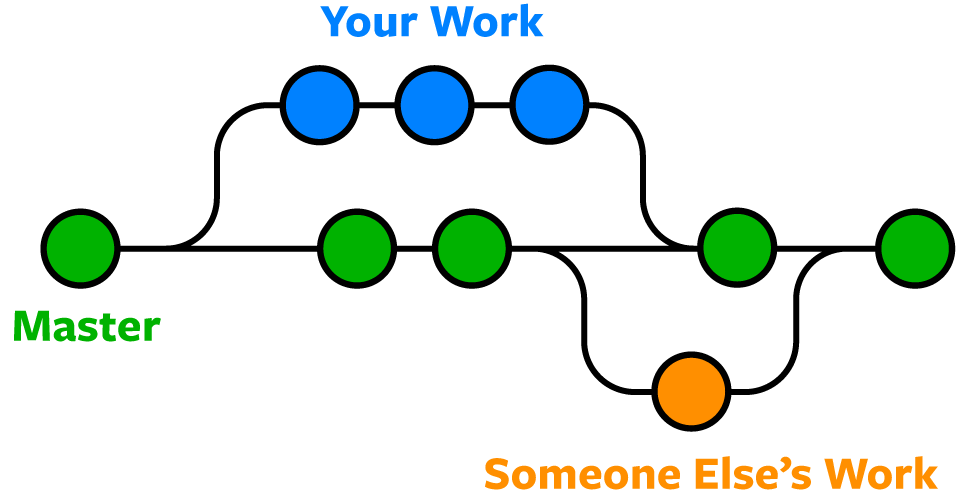
Git's branching model is perhaps its most revolutionary feature, fundamentally changing how developers approach collaboration and feature development. Branches allow you to diverge from your main codebase to experiment, develop features, or fix bugs in complete isolation—then seamlessly integrate your changes back when ready.
Consider a real-world scenario: you're developing a complex new authentication system that will take weeks to complete, but a critical security patch needs to be deployed immediately. With Git branches, you create a dedicated branch for your authentication work, switch back to the main branch to implement the urgent fix, deploy it to production, then return to your feature branch to continue development. When your authentication system is complete and thoroughly tested, you merge it back to the main branch. Both the security patch and new feature coexist perfectly in your project's history.
When merging branches, you may occasionally encounter conflicts—situations where Git can't automatically reconcile different changes to the same code. Rather than being a problem, merge conflicts are Git's way of ensuring you never accidentally lose important work. Git clearly marks conflicted areas and provides tools to help you make informed decisions about which changes to keep, making conflict resolution a manageable part of the collaborative development process.
Real-World Branching Scenario
Create Feature Branch
Start working on a new website feature in a separate branch
Switch to Master
Urgent change request comes in, switch back to master branch
Make Rush Change
Implement and push the urgent change live immediately
Resume Feature Work
Switch back to feature branch and continue development
Merge Completed Feature
Merge feature branch into master, keeping both changes
When multiple developers modify the same file section, Git detects conflicts and provides tools to review both sets of changes and decide which to keep.
Pull Requests
Pull requests represent the evolution of code review from an informal process to a structured, collaborative workflow that ensures code quality and knowledge sharing across teams. When a developer completes work on a feature branch, instead of merging directly into the main codebase, they create a pull request—essentially asking permission to merge their changes while providing context about what they've built.
This process has become the backbone of modern software quality assurance. Team leads and peers can review the proposed changes, run automated tests, suggest improvements, and discuss implementation details before any code reaches production. Pull requests create a permanent record of why changes were made, fostering transparency and collective code ownership that strengthens entire development teams.
Pull Request Workflow
Developer Creates Branch
Team member works on changes in a separate branch from master
Submit Pull Request
Developer creates pull request to notify project manager for code review
Review and Discussion
Team discusses proposed changes and evaluates code quality
Merge Decision
Project manager decides whether to approve and merge the changes
Grow Your Skills
Mastering Git is just the beginning of your development journey. Our comprehensive curriculum covers the full spectrum of modern development practices, from foundational programming concepts to advanced deployment strategies. Our industry-experienced instructors bring real-world expertise to small, intensive classes designed for working professionals.
Available Course Categories
Web Development
Learn to build modern websites and web applications using current industry standards and best practices.
Python Programming
Master one of the most popular programming languages used in web development, data science, and automation.
Data Science
Develop skills in data analysis, machine learning, and statistical modeling for data-driven decision making.
Web Design
Create visually appealing and user-friendly websites with modern design principles and tools.