Step-by-Step Setup Instructions:
1. Navigate to the official SQL Server Express download page from Microsoft's website to ensure you're getting the latest security updates and patches.
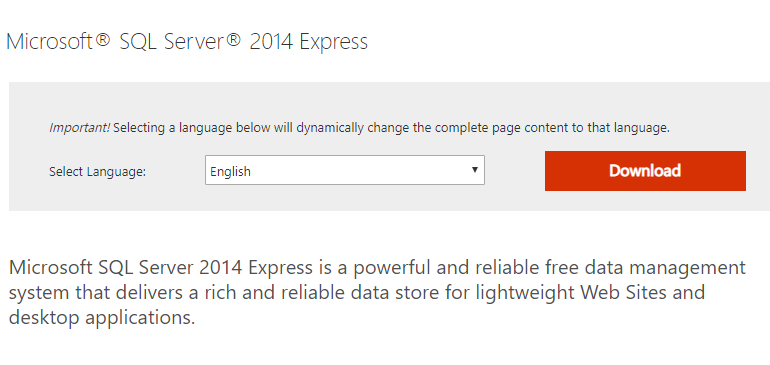
2. Select your preferred language from the dropdown menu and click the Download button to proceed to the file selection screen.
3. Determine your operating system architecture (32-bit or 64-bit) before selecting the appropriate installer package—this critical step prevents compatibility issues and ensures optimal performance.
- Press the Windows key + Pause/Break key simultaneously to open the system information panel directly.
- Alternatively, navigate to Control Panel => System and Security => System to view your system specifications.
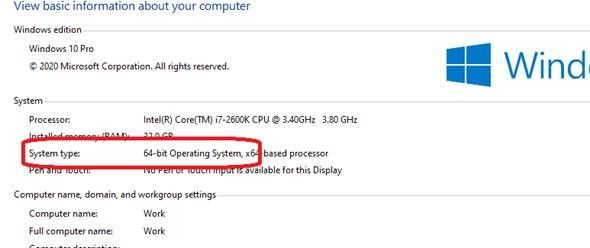
Understanding your system architecture is essential for selecting the correct SQL Server Express package, as the wrong choice will result in installation failure or suboptimal performance.
4. From the available downloads list, locate and select the appropriate SQL Server Express package based on your operating system architecture identified in the previous step, then click Next to begin the download.
- For 32-bit systems—ExpressAndTools 32BIT\SQLEXPRWT_x86_ENU.exe (File Size: 840.8MB)
- For 64-bit systems—ExpressAndTools 64BIT\SQLEXPRWT_x64_ENU.exe (File Size: 833.2MB)
5. Once the download completes, execute the downloaded installer file and grant administrative permissions when prompted—these elevated privileges are required for system-level database engine installation.
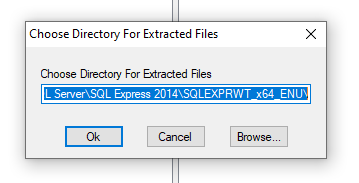
6. Click OK in the initial setup dialog and allow several minutes for the installation files to extract completely to your system's temporary directory.
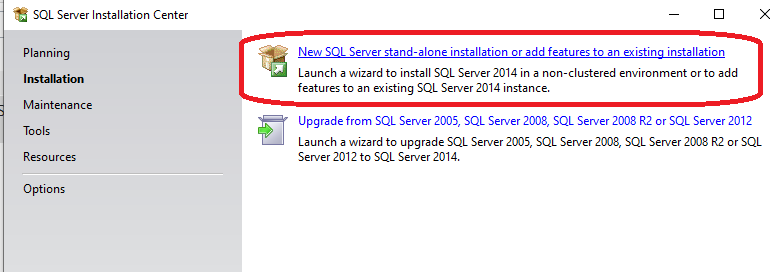
7. When the SQL Server Installation Center launches, select "New SQL Server stand-alone installation or add features to an existing installation" to begin configuring your fresh database instance.
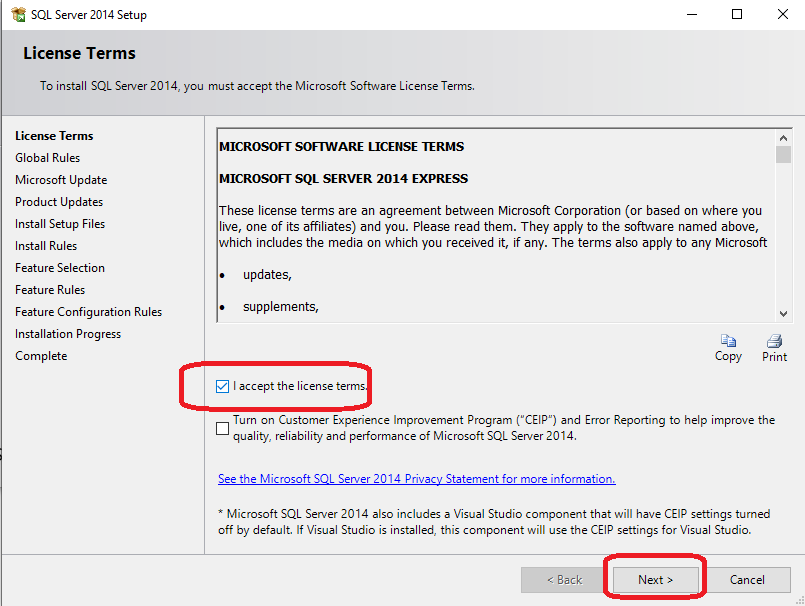
8. Carefully review the Microsoft Software License Terms, then check the acceptance checkbox and click Next to proceed—these terms govern your usage rights and limitations for SQL Server Express.
9. On the Microsoft Update configuration screen, choose your preferred update settings and click Next. Enabling automatic updates ensures your SQL Server installation receives critical security patches and performance improvements.
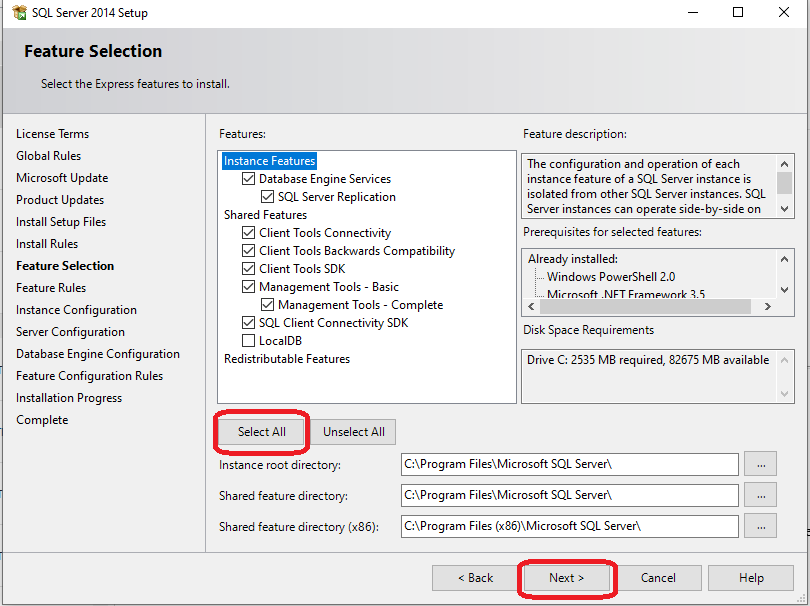
10. In the Feature Selection screen, click "Select All" to install the complete SQL Server Express toolkit, including Management Studio and documentation, then click Next to continue.
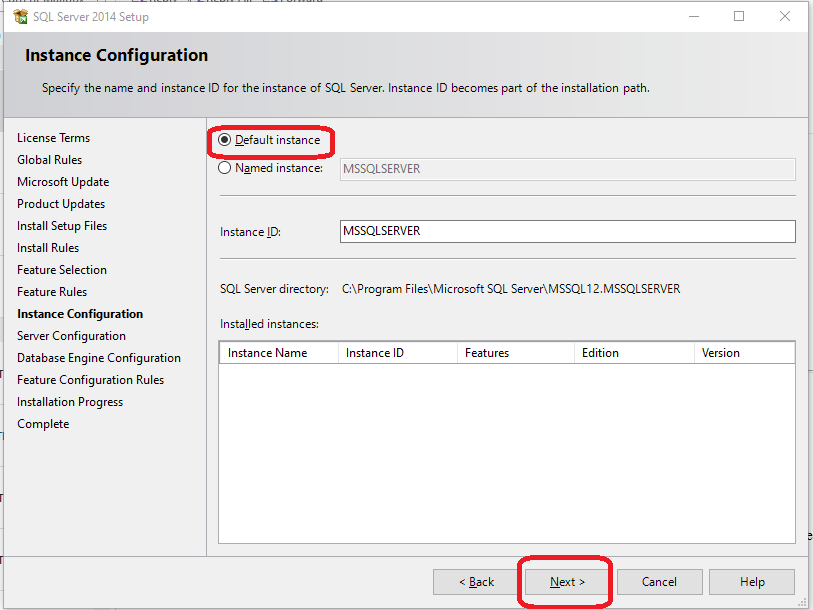
11. On the Instance Configuration screen, select "Default instance" unless you have specific requirements for named instances, then click Next to proceed with the standard configuration.
IMPORTANT NOTE: If you encounter an error regarding missing Microsoft .NET Framework 3.5 during installation, visit the official Microsoft download page to install the required framework version. After installation, select "Re-Run" in the SQL Server installer to continue the setup process, and plan to restart your computer when installation completes.
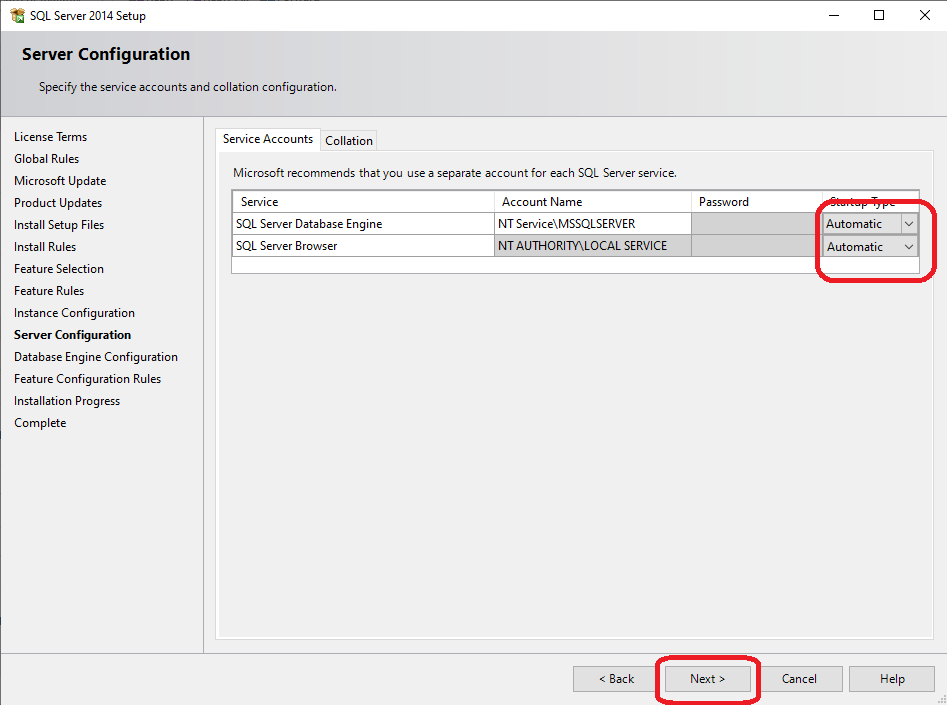
12. In the Server Configuration panel, set the Startup Type to "Automatic" for both SQL Server Database Engine and SQL Server Browser services to ensure they launch automatically with Windows, then click Next.
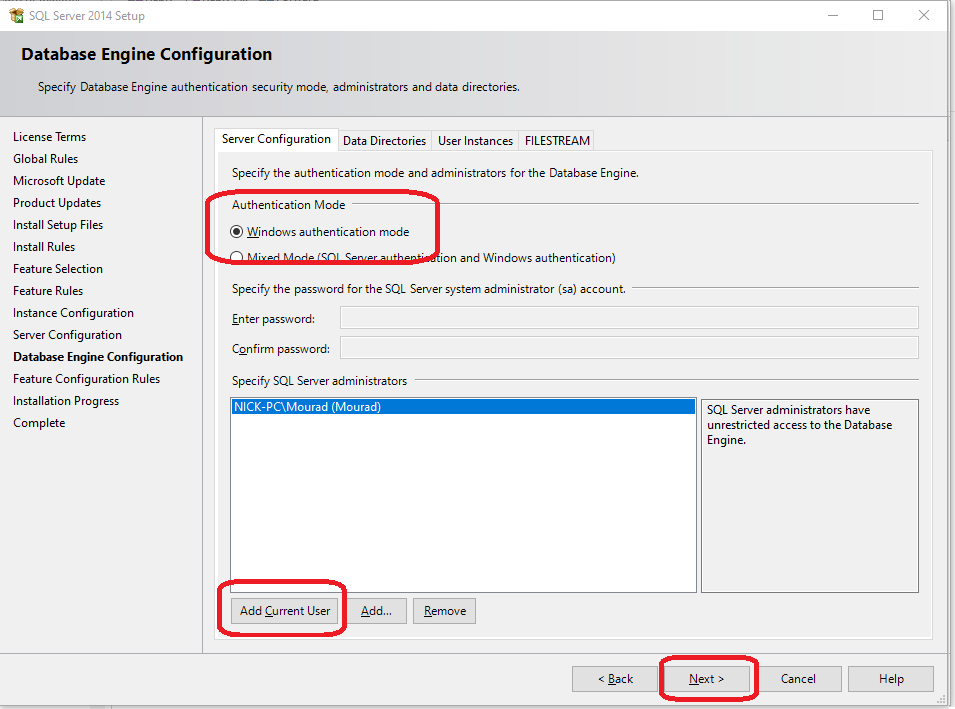
13. Configure the Database Engine security settings on this critical screen that determines how users will authenticate to your SQL Server instance:
Select "Windows authentication mode" for enhanced security that leverages your existing Windows user credentials
Click "Add Current User" to grant your Windows account administrative privileges on the SQL Server instance, then click Next
14. Monitor the installation progress and verify that all components show "Succeeded" status messages before closing the installer—any failed components may require troubleshooting or reinstallation.
15. Congratulations! You have successfully installed SQL Server Express 2014 on your system and can now begin developing database applications or managing data workloads.
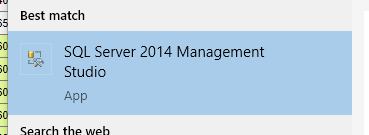
16. Launch SQL Server 2014 Management Studio from your Start menu to verify the installation completed successfully and familiarize yourself with the database management interface.
32-bit vs 64-bit Installation Options
| Feature | 32-bit System | 64-bit System |
|---|---|---|
| File Name | SQLEXPRWT_x86_ENU.exe | SQLEXPRWT_x64_ENU.exe |
| File Size | 840.8 MB | 833.2 MB |
| Performance | Standard | Enhanced |
| Memory Support | Limited | Full System RAM |
System Information Check Process
Keyboard Shortcut Method
Press Windows key + Pause/Break key simultaneously to instantly display system properties window with architecture information.
Control Panel Method
Navigate to Control Panel, then System and Security, then System to view detailed system specifications including processor architecture.
Verify Architecture
Look for 'System type' field which will clearly indicate either 32-bit or 64-bit operating system version.
If you encounter an error about missing Microsoft .NET Framework 3.5 during installation, you must download and install it separately before continuing. The setup will allow you to re-run the installation after resolving this dependency.
Pre-Installation Requirements Checklist
Ensures you download the correct installer version
Installation files require adequate storage space
Installation requires elevated permissions to modify system
Prevents conflicts during installation process
Required for downloading installation files and updates
Installation Process Timeline
Download Phase
Download installer file based on system architecture
Extraction Phase
Extract installation files and prepare setup wizard
Configuration Phase
Select features, configure instance, and set authentication
Installation Phase
Install database engine and management tools
Verification Phase
Launch Management Studio and confirm successful installation
Authentication Mode Considerations
After installation completion, launch SQL Server Management Studio to confirm the database engine is running correctly. You should be able to connect using Windows authentication and see the default system databases.