Topics Covered in This Ruby on Rails Tutorial:
Creating a Genre Controller, Creating a Genre View, Improving the Look of the Genre View
Exercise Preview
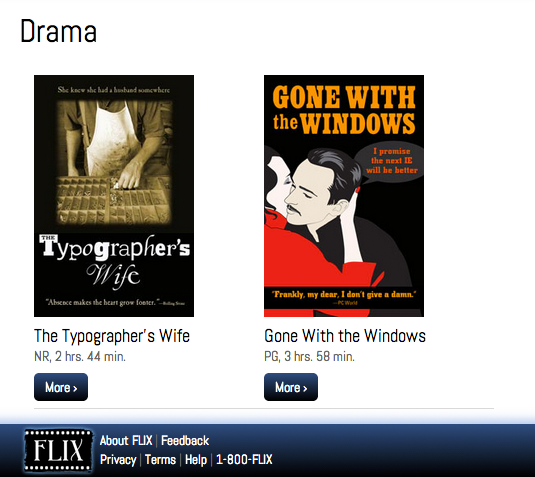
Photos courtesy of istockphoto, © Sergey Kashkin, Image #318828, Sveta Demidoff, Image #2712135, Korhan Karacan, Image #15095805
Exercise Overview
In the previous exercise, we established genre functionality for our movies. Now we'll take the next logical step: making each genre clickable to create a dedicated page showcasing all movies within that category. This enhancement provides an excellent opportunity to explore Rails' Model-View-Controller (MVC) architecture in action, particularly how three interconnected models collaborate to deliver seamless user experiences.
This exercise demonstrates fundamental principles of modern web development: creating intuitive navigation patterns, maintaining DRY (Don't Repeat Yourself) code through partials, and building scalable controller architectures. These concepts remain essential in today's Rails applications, from small-scale projects to enterprise-level systems.
If you completed the previous exercises, you can skip the following sidebar. We strongly recommend completing the previous exercises before proceeding, as they establish the foundational models and relationships this exercise builds upon. If you haven't finished them, follow the setup instructions below.
MVC Pattern in ActionThis exercise demonstrates how three models interact within the MVC framework. You'll see firsthand how controllers coordinate between models and views to create dynamic, interconnected pages.
If You Did Not Do the Previous Exercises (3A–5B)
- Close any files you may have open.
- Open the Finder and navigate to Class Files > yourname-Rails Class
- Open Terminal.
- Type
cdand a single space (do NOT press Return yet). - Drag the yourname-Rails Class folder from the Finder to the Terminal window and press ENTER.
- Run
rm -rf flixto delete your existing copy of the Flix site. - Run
git clone https://bitbucket.org/Noble Desktop/flix.gitto copy the Flix Git repository. - Type
cd flixto enter the new directory. - Type
git checkout 5Bto bring the site up to the end of the previous exercise. - Run
bundleto install any necessary gems. - Run
yarn install --check-filesto install JavaScript dependencies.
Getting Started
Let's begin by setting up our development environment and ensuring we're working with the correct project files.
Open the Finder and navigate to Class Files > yourname-Rails Class
Open Terminal.
Type
cdand a single space (do NOT press Return yet).Drag the flix folder from the Finder to the Terminal window.
Make sure you're in Terminal and hit Return to change into the project folder.
Environment Setup Process
Navigate to Project Directory
Use Finder to locate your Rails class folder and open Terminal for command line operations.
Change Directory
Use the cd command with drag-and-drop functionality to navigate into your flix project folder.
Verify Project State
Ensure your Rails application is ready for the genre controller and view implementation.
Creating a Genre Controller
Our first step involves generating a dedicated controller to handle genre-related requests. Following Rails conventions, this controller will manage the presentation layer for genre data, separating concerns cleanly from our existing movie functionality.
Switch to the Terminal.
Generate the controller by typing the following:
rails generate controller genresRemember, controller names follow Rails' pluralization conventions. Terminal will display the names of several files it has created, including the controller, helper, and test files.
In your code editor, open flix > config > routes.rb
We recommend opening the entire flix folder in your code editor for easier navigation between files.
Configure the genre routes by adding the following around line 6:
resources :movies
resources :genres, only: :show
This configuration provides resourceful routes for genres, but restricts them to the
showaction only. This approach follows the principle of least exposure—we're only creating the routes we actually need. Additional CRUD operations can be added later as requirements evolve.Save the file.
Open flix > app > controllers > genres_controller.rb
Implement the
showmethod by adding:class GenresController < ApplicationController def show @genre = Genre.find(params[:id]) end endThis pattern should be familiar by now—we're following Rails' convention of finding a record by its ID and making it available to the view through an instance variable. This approach maintains consistency with RESTful design principles.
Save the file.
Now that our controller foundation is in place, let's move on to creating the corresponding view to present genre data to users.
Remember that controller names are always plural in Rails. This follows the RESTful convention where controllers manage collections of resources.
Generated Files and Routes
Controller Generation
Rails creates the genres_controller.rb file automatically along with associated view folders and basic structure.
Resourceful Routes
Using 'only: :show' restricts routes to just the show action, providing clean URL structure without unnecessary endpoints.
Creating a Genre View
With our controller logic established, we need to create the view template that will render genre information and associated movies for our users.
Create a new blank document in your code editor.
The Rails generator has already created a genre views folder for us. Save this blank document with File > Save As using these specifications:
- Name: show.html.erb
- Location: yourname-Rails Class > flix > app > views > genres
NOTE: You'll now have two files named show.html.erb in your Rails application—one for movies and one for genres. This naming convention is required by Rails' organizational system. The files serve different controllers, so their content will help distinguish them during development.
Create the page heading by typing:
<h1><%= @genre.name %></h1>This displays the genre name as the primary heading, establishing clear context for users.
Add basic movie listing functionality with the following code:
<h1><%= @genre.name %></h1>
<% @genre.movies.each do |movie| %>
<p><%= link_to movie.title, movie %></p>
<% end %>
This code leverages the association between genres and movies, iterating through all movies in the selected genre and creating clickable links to each. We're starting with basic output to verify functionality before implementing more sophisticated styling.
Save the file.
Close the file.
Open app > views > movies > show.html.erb in your code editor.
Now we'll make the genre labels clickable, creating seamless navigation between movies and their associated genres.
Locate the genre display code around line 16:
<div>
   <span>Genre:</span>
   <%= @movie.genre.name unless @movie.genre.nil? %>
</div>
Transform the genre name into a clickable link:
<div>
   <span>Genre:</span>
   <%= link_to(@movie.genre.name, @movie.genre) unless @movie.genre.nil? %>
</div>
Save the file.
Start the Rails development server:
rails serverIn your browser, navigate to localhost:3000
Click on Text M for Murder to view a movie detail page.
In the Movie Details sidebar, notice that the genre (Horror) is now clickable. Click on it to access the genre page, which displays movies as basic text links.
NOTE: The URL should follow the pattern localhost:3000/genres/1, demonstrating proper RESTful routing.
Our basic genre functionality is now operational, but the presentation needs significant enhancement to match professional standards. Let's improve the visual design and user experience.
You now have two show.html.erb files in different folders. Rails' strict organizational system requires this naming, so be careful to edit the correct file in the genres views folder.
View Creation Process
Create View File
Save as show.html.erb in the app/views/genres directory that Rails automatically created during controller generation.
Add Genre Heading
Use ERB syntax to display the genre name as the main page heading with proper HTML structure.
Loop Through Movies
Iterate through all movies in the genre using the association, creating clickable links for each movie title.
Make Genres Clickable
Update the movie show view to turn genre names into clickable links using Rails link_to helper method.
Improving the Look of the Genre View
While our current implementation satisfies basic functional requirements, the plain-text presentation falls short of modern user expectations. Instead of recreating the attractive movie display code we already have, we'll implement Rails partials—a powerful feature for maintaining DRY principles while ensuring consistent presentation across different sections of our application.
Partials are reusable view components that promote code maintainability and consistency. By extracting common presentation logic into partials, we can modify the display format in one place and have those changes propagate throughout the application.
Open app > views > movies > index.html.erb in your code editor.
Select the movie listing code (lines 14–30, verify it's enclosed in
ultags):<ul class="content-links-list clearfix"> <% @movies.each do |movie| %> <li> <%= link_to movie_path(movie) do %> <div class="clearfix"> <%= image_tag("posters/thumbs/#{movie.poster_image}", class: 'imgLeft') %> <div class="clearfix"> <h3><%= movie.title %></h3> <div><%= movie.cast %></div> <div><%= movie.mpaa_rating %>, <%= movie.runtime %> minutes</div> <div><span class="button">More ›</span></div> </div> </div> <% end %> </li> <% end %> </ul>Cut the selected code (Cmd–X on Mac, Ctrl–X on Windows).
Press Return once to create a blank line where we'll render our partial.
Create a new blank document for our partial.
Paste the movie listing code into this new document.
Save this file as _movie_list.html.erb in the app > views > movies folder.
The initial underscore is Rails' convention for identifying partial templates. This naming convention allows Rails to automatically recognize and handle these reusable components.
Return to index.html.erb and add the partial rendering call:
<div class="clearfix">
   <%= render 'movie_list' %>
   <div class="inset-block">
Notice we omit the underscore when referencing partials—Rails automatically handles this convention.
Save the file.
Test the changes by visiting localhost:3000 in your browser. The movies index page should display exactly as before, confirming our refactoring was successful.
Open app > views > genres > show.html.erb (ensure you're editing the genres version, not the movies version).
The file should currently contain:
<h1><%= @genre.name %></h1>
<% @genre.movies.each do |movie| %>
<p><%= link_to movie.title, movie %></p>
<% end %>
Replace the basic movie listing with our enhanced partial:
<h1><%= @genre.name %></h1>
<%= render 'movies/movie_list' %>
Since we're in the genres controller, we specify the full path
movies/movie_listto reference the partial from the movies views directory.Save the file.
Navigate to a genre page (e.g., localhost:3000/genres/1) and you'll encounter a
NoMethodError.This error occurs because our partial references
@movies, an instance variable that exists in the movies controller but not in the genres controller. The genres controller only defines@genre. This is a common challenge when sharing partials across different controllers—we need to make our partial more flexible and reusable.Rather than creating duplicate instance variables, we'll implement local variables within the partial. This approach provides better encapsulation and makes our code more maintainable.
Open _movie_list.html.erb in your code editor.
Find the loop declaration at the beginning:
<ul class="content-links-list clearfix">
   <% @movies.each do |movie| %>
Remove the @ symbol to convert it to a local variable:
<ul class="content-links-list clearfix">
   <% movies.each do |movie| %>
Save the file.
Return to index.html.erb and modify the render call to pass the movies data:
<%= render 'movie_list', movies: @movies %>This explicitly passes the
@moviesinstance variable to the partial's localmoviesvariable.Save the file.
In app > views > genres > show.html.erb, update the render call:
<%= render 'movies/movie_list', movies: @genre.movies %>Here we pass the genre's associated movies to the same local variable, making our partial truly reusable across different contexts.
Save the file.
Test both pages: navigate to localhost:3000/movies to verify the index still works properly.
Click on any movie, then click its genre link. The genre page should now display beautifully formatted movie cards with posters, cast information, and ratings—matching the professional appearance of the main movies page.
In Terminal, press Ctrl–C to shut down the development server.
Congratulations! You've successfully implemented a sophisticated genre browsing system that demonstrates several crucial Rails concepts: RESTful routing, controller organization, view partials, and clean separation of concerns. This foundation provides excellent scalability for future enhancements like filtering, sorting, or advanced search functionality.
Rather than duplicating code between index and genre pages, we're creating a reusable partial. This follows the Don't Repeat Yourself principle, making code more maintainable.
Partial Implementation Benefits
Partial Creation and Implementation
Extract Existing Code
Cut the movie list HTML from index.html.erb, specifically lines 14-30 that contain the ul tags and movie iteration.
Create Partial File
Save the extracted code as _movie_list.html.erb with the required underscore prefix to indicate it's a partial.
Update Variable References
Change @movies to movies in the partial to use local variables instead of instance variables for better reusability.
Render with Parameters
Update both index and genre views to render the partial while passing the appropriate movie collections as local variables.
When rendering partials from different controllers, use the full path like 'movies/movie_list'. Rails automatically handles the underscore prefix for partial files.