Topics Covered in This JavaScript & jQuery Tutorial:
Creating and manipulating arrays, leveraging the Math object for randomization, implementing dynamic content selection from arrays
Exercise Preview
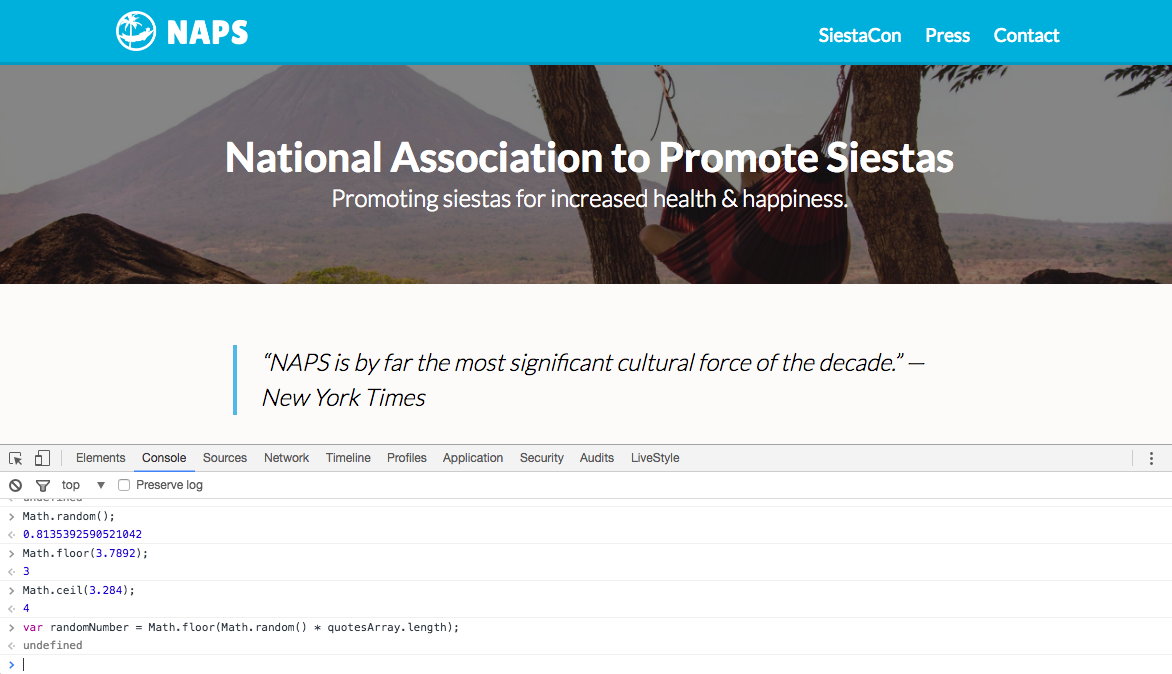
Exercise Overview
In this comprehensive exercise, you'll master one of JavaScript's most fundamental data structures: arrays. We'll explore how to create, populate, and manipulate arrays while integrating them with JavaScript's Math object to build dynamic, randomized content. By the end of this tutorial, you'll have created a sophisticated testimonial rotation system that demonstrates real-world application of these core programming concepts.
This exercise bridges the gap between static HTML content and dynamic, interactive web experiences—a critical skill for modern web development professionals.
Getting Started
- Open your code editor if it isn't already open.
- Close any files you may have open to maintain a clean workspace.
- For this exercise we'll be working with the Random-Testimonial folder located in Desktop > Class Files > yourname-JavaScript jQuery Class. If your code editor supports project folders (like Visual Studio Code), open the entire folder to streamline file navigation.
- Open index.html from the Random-Testimonial folder.
- Preview index.html in Chrome—we'll be leveraging Chrome's powerful DevTools throughout this exercise.
Notice the current testimonial: NAPS is by far the most significant cultural force of the decade. – New York Times.
Our goal is to transform this static testimonial into a dynamic system using JavaScript that randomly displays different testimonials each time the page loads. To accomplish this, we'll implement an array—JavaScript's built-in data structure for storing ordered collections of values.
Think of an array as a sophisticated filing cabinet where each drawer is numbered and can hold specific information. Arrays store multiple values in a single, organized structure, allowing you to access any specific value by referencing its position (index) within the collection. While humans typically count starting from 1, JavaScript arrays use zero-based indexing, meaning the first item is at position 0, the second at position 1, and so forth.
Setup Requirements
Visual Studio Code or similar with folder support recommended
Located in Desktop > Class Files > yourname-JavaScript jQuery Class
This will be your main working file for the exercise
Chrome DevTools will be essential for testing and debugging
Creating an Array
Before diving into our testimonial system, let's establish a solid foundation by experimenting with arrays in Chrome's Console. This hands-on approach will give you immediate feedback and help solidify these concepts.
We'll begin by exploring array fundamentals in the Console environment. Open Chrome's Console using Cmd–Opt–J (Mac) or CTRL–Shift–J (Windows).
In the Console, type the following code but don't execute it yet:
var myArray = [];The
[]syntax is JavaScript's array literal notation—the standard way to create new arrays.Array Zero-Indexing ConceptJavaScript arrays start counting from 0, not 1. This means the first item is at index 0, the second at index 1, and so on. This fundamental concept is crucial for accessing array elements correctly.
Creating Your First Array
1Open Chrome Console
Press Cmd-Opt-J (Mac) or CTRL-Shift-J (Windows) to access the developer console
2Declare Empty Array
Type 'var myArray = [];' - the square brackets denote an empty array structure
3Add Array Values
Populate with strings: var myArray = ['Madrid', 'Paris', 'London']; separating each with commas
4Test Array Access
Use myArray[0]; to get 'Madrid', myArray[2]; to get 'London' - practice zero-based indexing
TIP: Optimizing Your Console Experience
For better readability during this exercise, adjust your Console text size:
- Mac: Cmd-Plus(+) to enlarge, Cmd-Minus(-) to reduce, Cmd-0 to reset
- Windows: CTRL-Plus(+) to enlarge, CTRL-Minus(-) to reduce, CTRL-0 to reset
Now let's populate our array with actual data. Modify your code to include string values:
var myArray = ['Madrid', 'Paris', 'London'];Notice how each string is wrapped in quotes and separated by commas—this is the proper syntax for array elements.
The Console displays undefined—this is completely normal and expected behavior.
In JavaScript, operations either return a value or return undefined. Array creation is a statement that performs an action but doesn't produce a return value, hence the undefined response. This distinction between statements and expressions is fundamental to understanding JavaScript's execution model.
myArray; and press Return (Mac) or Enter (Windows).["Madrid", "Paris", "London"] displayed in the Console, confirming our array was created successfully.To access specific array elements, we use bracket notation with the element's index position:
myArray[0];Remember: JavaScript uses zero-based indexing, so the first element is always at position 0.
Execute this command to see "Madrid" returned.
To retrieve the third element, use index 2:
myArray[2];Pro tip: Use your Up Arrow key to cycle through previous Console commands—a huge time-saver during development.
This returns "London", demonstrating how array indexing works in practice.
Editing an Array
Arrays aren't just storage containers—they're dynamic data structures that can be modified after creation. Let's explore the most common array manipulation techniques.
To modify an existing array element, use assignment with bracket notation:
myArray[2] = 'Beijing';Execute this command—notice it returns "Beijing", confirming the assignment was successful.
Arrays come with built-in methods that provide powerful functionality. Let's examine these methods using the
console.dir()function:console.dir(myArray);The dir method creates an interactive directory-style listing of an object's properties and methods—essential for understanding what functionality is available.
Execute this command to see the detailed array structure.
Click the arrow next to Array[3] to expand the array's contents.
Expand
__proto__: Array[0] to reveal the complete list of available array methods. This prototype chain contains all the built-in functionality you can use with arrays.The
push()method adds new elements to the end of an array:myArray.push('New York');You can add any value type to an array—strings, numbers, objects, or even other arrays.
Execute this command—it returns 4, indicating the array now contains four elements.
Verify the addition by typing
myArray;and executing it. You should see:["Madrid", "Paris", "Beijing", "New York"]The
lengthproperty is crucial for dynamic programming—it tells you exactly how many elements an array contains:myArray.length;This returns 4, confirming our array's current size. The length property automatically updates as you add or remove elements.
JavaScript arrays include a built-in
sort()method for organizing data:myArray.sort();Execute this to see the cities arranged alphabetically:
["Beijing", "Madrid", "New York", "Paris"]Note that
sort()modifies the original array and returns the sorted result.Keep index.html open in Chrome—we'll return to it shortly to implement our testimonial system.
Essential Array Methods
push() Method
Adds new elements to the end of an array. Returns the new array length after addition.
length Property
Returns the number of elements in an array. Useful for dynamic operations and loops.
sort() Method
Arranges array elements in alphabetical order. Modifies the original array structure.
Use console.dir(myArray) to see an interactive list of all available array methods and properties. This is invaluable for exploring what operations you can perform on your arrays.
Creating an Array of Testimonials
Now that you understand array fundamentals, let's apply this knowledge to build our dynamic testimonial system. This practical implementation will demonstrate how arrays solve real-world web development challenges.
- Return to index.html in your code editor.
We'll add our JavaScript just before the closing
</body>tag (around line 46) to ensure the DOM is fully loaded before our script executes:</footer> <script> var quotesArray = []; </script> </body>Populate the array with placeholder content to establish the structure:
<script>
   var quotesArray = [
      'first quote',
      'second quote',
      'third quote'
   ];
</script>
This multi-line format improves readability for arrays with multiple elements. Notice the comma after each element except the last—a trailing comma would cause syntax errors in older browsers.
- Save the file to preserve your changes.
- Switch to index.html in Chrome and refresh the page to load your new script.
- Open the Console if it's not already visible.
- Test your array by typing
quotesArray;and executing it. You should see your placeholder quotes displayed. - Now we need to understand how to dynamically update page content. Return to index.html in your code editor.
- Examine line 32—notice the testimonial paragraph has an ID attribute of press-quote. This ID provides the hook we need for JavaScript manipulation.
- Let's experiment with DOM manipulation in the Console. Switch back to Chrome.
Access the testimonial element using the DOM API:
document.getElementById('press-quote');- Execute this command—it returns the complete HTML element object, showing you have successfully selected the target element.
- The element object contains many properties, but we specifically need to modify its text content.
- Use the Up Arrow to recall the previous command.
Append .textContent to access just the text portion:
document.getElementById('press-quote').textContent;- Execute this to see the current testimonial text extracted cleanly.
The
textContentproperty should display:"NAPS is by far the most significant cultural force of the decade.—New York Times"- Now let's modify this content. Recall the previous command with Up Arrow.
Use assignment to replace the content with an array element:
document.getElementById('press-quote').textContent = quotesArray[2];We're accessing the third element (index 2) from our quotes array. Remember that JavaScript arrays use zero-based indexing.
Execute this command and watch the testimonial on the page instantly change to display third quote!
This demonstrates the power of DOM manipulation—you can dynamically update any page content without requiring a page refresh. Now we need to make this selection random rather than hardcoded.
JavaScript arrays start counting from 0, not 1. This means the first item is at index 0, the second at index 1, and so on. This fundamental concept is crucial for accessing array elements correctly.
Creating Your First Array
Open Chrome Console
Press Cmd-Opt-J (Mac) or CTRL-Shift-J (Windows) to access the developer console
Declare Empty Array
Type 'var myArray = [];' - the square brackets denote an empty array structure
Add Array Values
Populate with strings: var myArray = ['Madrid', 'Paris', 'London']; separating each with commas
Test Array Access
Use myArray[0]; to get 'Madrid', myArray[2]; to get 'London' - practice zero-based indexing
The Math Object
JavaScript's built-in Math object provides a comprehensive suite of mathematical functions and constants. For our testimonial randomizer, we'll leverage its random number generation capabilities to create an unpredictable user experience.
Let's explore the Math object's capabilities. In the Console, type
Math;and execute it.Expand the Math object by clicking its arrow to reveal its extensive collection of properties and methods.
You'll notice the object contains mathematical constants (written in UPPERCASE like
PI) and numerous functions for calculations. For instance,Math.PI;provides the precise value of π for mathematical operations.The random() method is our key tool for generating unpredictability:
Math.random();Execute this to see a random decimal number between 0 (inclusive) and 1 (exclusive).
- Use the Up Arrow to repeat the command and execute it again—notice you get a different random number each time.
To make this useful for array indexing, we need to scale this decimal to match our array's length. For a five-element array, we'd want integers from 0 to 4:
Math.random() * 4;This multiplication transforms our 0-1 range into a 0-4 range, but still returns decimal numbers.
Execute this to see a random decimal between 0 and 4.
Since array indices must be integers, we need to convert these decimals to whole numbers.
The Math.floor() method rounds down to the nearest integer:
Math.floor(3.78);This returns 3, demonstrating downward rounding.
Conversely, Math.ceil() rounds up to the nearest integer:
Math.ceil(3.78);This returns 4, showing upward rounding. For array indexing, we typically use
Math.floor()to ensure we never exceed the array bounds.
Math object contains constants like PI (uppercase) that never change, and methods like random() that perform calculations. Constants provide fixed mathematical values while methods execute operations.
Math Rounding Methods
| Feature | Math.floor() | Math.ceil() |
|---|---|---|
| Direction | Rounds Down | Rounds Up |
| Example: 3.78 | Returns 3 | Returns 4 |
| Use Case | Array indices | Capacity planning |
Using the Math Object to Pick Random Testimonials
Now we'll combine our array knowledge with Math object functionality to create a robust random testimonial selector. This integration demonstrates how different JavaScript features work together to solve complex problems.
- Return to your code editor to implement the complete solution.
- We need realistic testimonial content. Navigate to the snippets folder and open press-quotes.txt—this file contains professionally crafted testimonials that will make our demo more compelling.
- Select and copy all the testimonial text from the file.
- Close the text file and return to index.html.
- Replace the placeholder quotes with the real testimonials by selecting the three temporary entries and pasting the new content.
- Save your changes to preserve the updated testimonials.
- Switch back to Chrome and refresh index.html to load the new data.
In the Console, let's build our random selection formula step by step:
Math.random() * quotesArray.length;Using
quotesArray.lengthinstead of a hardcoded number makes your code adaptive—it automatically adjusts if you add or remove testimonials later. This is a crucial principle of maintainable code.To convert this to a usable array index, wrap it with Math.floor():
Math.floor( Math.random() * quotesArray.length);Pay careful attention to the parentheses placement—the entire multiplication must be completed before rounding.
- Execute this command to get a random integer within your array's valid index range.
- Press Up Arrow and execute again to verify you're getting different random numbers each time.
Perfect! Copy this complete expression—we'll integrate it into our JavaScript:
Math.floor(Math.random() * quotesArray.length);- Switch back to index.html in your code editor.
Add this expression to your script, creating a new line after the array declaration:
];
   Math.floor(Math.random() * quotesArray.length);
</script>
Store this random number in a variable for easy reference:
];
   var randomNumber = Math.floor(Math.random() * quotesArray.length);
</script>
Finally, implement the DOM update that replaces the static testimonial with our randomly selected one:
];
   var randomNumber = Math.floor(Math.random() * quotesArray.length);
   document.getElementById('press-quote').textContent = quotesArray[randomNumber];
</script>
Save the file to apply your changes.
Preview index.html in Chrome, refreshing if already open.
Your page now displays a randomly selected testimonial each time it loads!
Refresh the page several times to see different testimonials appear. You've successfully created a dynamic content system!
Note: We're intentionally leaving the original —New York Times testimonial in the HTML as a fallback for users with disabled JavaScript and to maintain SEO value for search engines.
Math object contains constants like PI (uppercase) that never change, and methods like random() that perform calculations. Constants provide fixed mathematical values while methods execute operations.
Math Rounding Methods
| Feature | Math.floor() | Math.ceil() |
|---|---|---|
| Direction | Rounds Down | Rounds Up |
| Example: 3.78 | Returns 3 | Returns 4 |
| Use Case | Array indices | Capacity planning |
Optional Bonus: Adding Quote Marks Around the Testimonial
Let's enhance our testimonial system with a professional touch. Currently, each entry contains both the testimonial and its attribution separated by an em dash. We can use JavaScript's string manipulation capabilities to add proper quotation marks around just the testimonial portion, creating a more polished presentation.
Return to index.html in your code editor to implement this enhancement.
JavaScript's split() method can break a string into an array based on a specified delimiter. Let's experiment with this functionality by adding a test line to our script (around line 57):
document.getElementById('press-quote').textContent = quotesArray[randomNumber];
   console.log( quotesArray[randomNumber].split('') );
</script>
Inside the split method's quotes, you need to enter an em dash (—) character:
- Mac: Press Shift–Opt–Hyphen(-)
- Windows: Hold ALT while typing 0151 on the numeric keypad, then release ALT. If this doesn't work, ensure Num Lock is enabled and try again.
Your code should look like this:
console.log( quotesArray[randomNumber].split('—') );- Save the file to apply this debugging code.
- Switch to index.html in Chrome and refresh the page.
- Open the Console to examine the split operation results.
You'll see the testimonial has been split into a two-element array, similar to:
["NAPS has ushered in a new era of sleep. ", " USA Today"]Notice that the split() method has removed the em dash delimiter and created separate array elements.
Click the arrow to expand this array and examine its structure.
The array contains two elements: the testimonial (index 0) and the attribution (index 1). You'll also notice extra spaces that we need to handle properly.
Return to index.html in your code editor to refine our approach.
Modify the split delimiter to include spaces around the em dash for cleaner separation:
console.log( quotesArray[randomNumber].split(' — ') );This approach will eliminate the unwanted spaces in our resulting array elements.
The split() method transforms a single string into an array by breaking it at specified characters. This enables precise text manipulation for formatting testimonials and attributions separately.
Advanced Text Formatting
Identify Split Character
Use emdash (—) to separate testimonial from attribution
Test Split Method
Use console.log() to verify split() creates proper array structure
Extract Testimonial Only
Access index [0] to get just the testimonial portion
Add Professional Quotes
Concatenate curly quotes for polished presentation