Exercise Preview
Exercise Overview
In this exercise, you'll create a YouTube video that smoothly enlarges on hover using pure CSS transitions—no JavaScript required. This technique demonstrates the power of modern CSS3 animations and responsive design principles that remain essential for creating engaging, interactive web experiences. You'll master CSS positioning, responsive video embedding, and transition animations that work seamlessly across devices and screen sizes.
If you completed the previous exercise, index.html should still be open in your code editor, and you can skip the following sidebar. If you closed index.html, re-open it now. We strongly recommend completing the previous exercise (1A) before starting this one, as it establishes the foundational markup and styles we'll build upon. If you haven't finished it, follow the setup instructions in the sidebar below.
Tutorial Roadmap
1Setup HTML Structure
Create container divs for the video with proper class names
2Position and Size Video
Use CSS to create responsive 16:9 aspect ratio container
3Embed YouTube Content
Add iframe code and position it absolutely within container
4Add Hover Animation
Implement CSS transitions for smooth zoom effect on mouseover
If You Did Not Do the Previous Exercise (1A)
- Close any files you may have open in your code editor.
- On the Desktop, navigate to Class Files > Responsive CSS3 Scrolling Effects.
- Delete the Hawaii folder if it exists.
- Duplicate the Hawaii Photos & Text Done folder.
- Rename the duplicate to Hawaii and open it in your code editor.
Now that your workspace is prepared, let's dive into creating a responsive video container that maintains proper aspect ratios and positioning across all screen sizes.
Pre-Exercise Setup
Start with a clean workspace
Locate the correct project directory
Prevent file conflicts
Create working copy for this exercise
Positioning & Sizing the YouTube Video
In index.html, locate line 107 and add the following markup to create a semantic container for the YouTube video. This nested div structure provides the foundation for responsive video embedding:
<p>
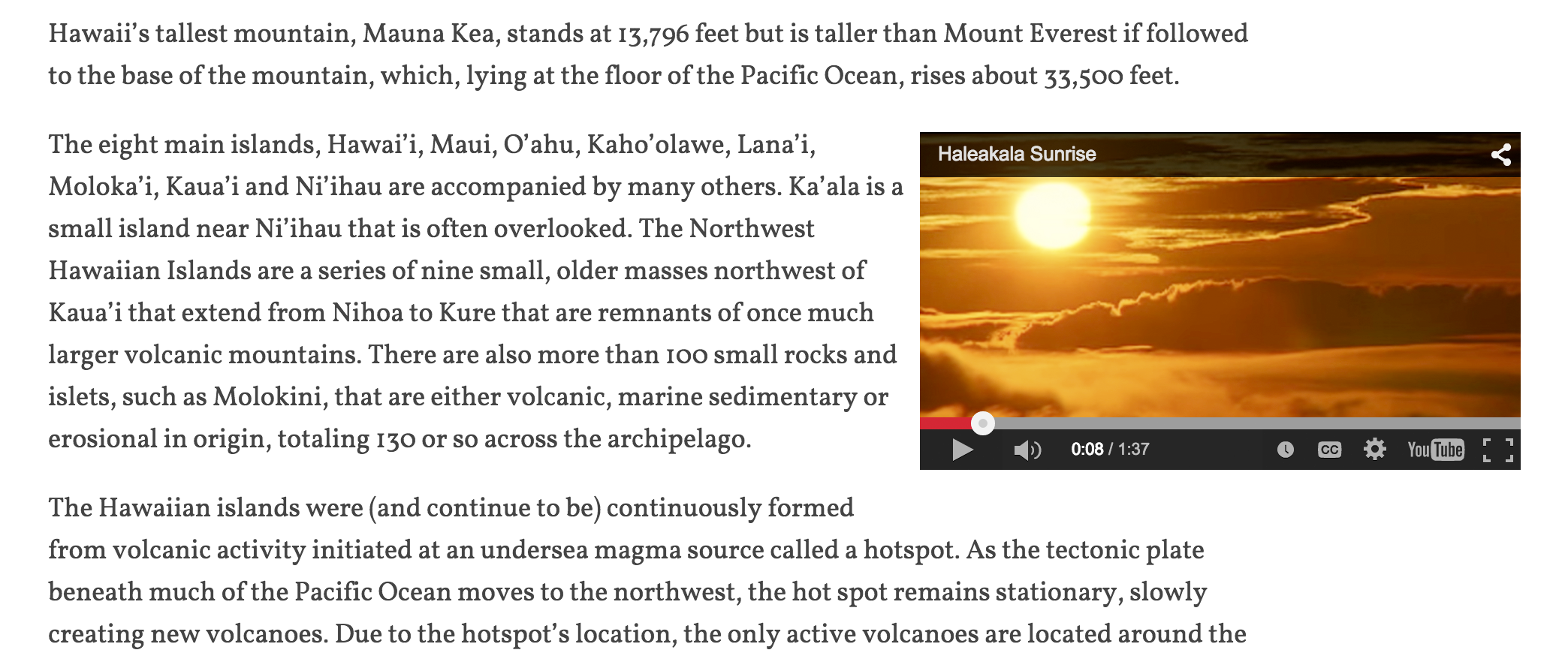
   Hawaii's tallest mountain, Mauna Kea, stands at 13,796 feet but is taller than Mount Everest if followed to the base of the mountain, which, lying at the floor of the Pacific Ocean, rises about 33,500 feet.
</p>
<div class="zoom">
   <div class="video-wrap">

   </div>
</div>
<p>
   The eight main islands, Hawai'i, Maui, O'ahu, Kaho'olawe, Lana'i, Moloka'i, Kaua'i and Ni'ihau are accompanied by many others.
Save the file to preserve your changes.
Open style.css (located in the css folder).
Scroll to the bottom of the file and add the following CSS rule. This establishes the basic positioning and sizing behavior for our video container:
.zoom {
   float: right;
   width: 40%;
   margin: 7px 20px 15px 7px;
   padding: 5px;
   border: 1px solid #000;
}
Save the file and refresh your browser to see the changes.
Scroll down until you see the small, bordered rectangle—this is your video's future home. The temporary border and padding serve as visual guides while we build the component, helping you understand the container's size and positioning behavior. Try resizing your browser window and observe how the video container automatically adjusts to maintain 40% of the available width.
While CSS makes it straightforward to set responsive widths using percentages, creating proportional height that maintains a video's 16:9 aspect ratio presents a unique challenge. Traditional height units don't reference the element's width, which is exactly what we need for proper aspect ratio maintenance.
The elegant solution involves using percentage-based padding as a height proxy. Since CSS calculates percentage padding based on the element's width (not height), we can leverage this behavior to create truly responsive video containers that scale proportionally in both dimensions.
Return to style.css in your code editor.
At the bottom of the file, add this crucial CSS rule that implements the aspect ratio technique:
.video-wrap {
   padding-top: 56.25%;
}
This creates a height equal to 56.25% of the container's width. The magic number comes from the mathematical relationship of video aspect ratios: 9 ÷ 16 = 0.5625 or 56.25%. This technique, known as the "intrinsic ratio" or "padding hack," has been a cornerstone of responsive web design since the early days of mobile-first development.
Save the file and refresh your browser.
Test the responsiveness by resizing your browser window while observing the video container. Notice how it maintains perfect 16:9 proportions regardless of screen size—this is responsive design at its finest, ensuring your video content looks professional on everything from smartphones to ultra-wide monitors.
Return to your code editor for the next phase.
Open Hawaii > snippets > youtube-iframe.html. This file contains YouTube's standard embed code, identical to what you'd receive when clicking the "Share" button on any YouTube video. This iframe-based approach ensures compatibility with YouTube's content delivery network and maintains access to their player controls and features.
Select all the code in the file.
Copy the selected code to your clipboard.
Close youtube-iframe.html.
Switch back to index.html in your code editor.
Paste the iframe code inside the video-wrap div (around line 109):
<div class="zoom">
   <div class="video-wrap">
      <iframe width="560" height="315" src="https://www.youtube.com/embed/G0K9Ht0N_as?rel=0" frameborder="0" allowfullscreen></iframe>
   </div>
</div>
Save the file and refresh your browser.
The YouTube video now appears on your page, but the fixed dimensions (560×315) conflict with our responsive container. The iframe needs to overlay the padding area and scale to match the container's dimensions. This is where CSS positioning becomes essential for creating truly adaptive embedded content.
Switch to style.css in your code editor.
Locate the .video-wrap rule and add the position property as shown:
.video-wrap {
   padding-top: 56.25%;
   position: relative;
}
Setting position: relative on the wrapper creates a positioning context for absolutely positioned child elements. Without this declaration, any absolutely positioned iframe would position itself relative to the document body rather than our video container—a common source of layout issues in responsive design.
At the bottom of the file, add this comprehensive rule for the iframe element:
.video-wrap iframe {
   position: absolute;
   top: 0;
   left: 0;
   width: 100%;
   height: 100%;
}
This CSS transforms the fixed-dimension iframe into a fully responsive element that fills the entire padding area we created. The absolute positioning removes it from the normal document flow, allowing it to overlay the padding space perfectly while maintaining the container's aspect ratio.
Save the file and refresh your browser.
Excellent! The YouTube video should now sit perfectly within the padding area, scaling fluidly as you resize the browser window. This combination of percentage-based padding and absolute positioning creates a bulletproof responsive video solution that works across all devices and screen orientations. The technique has become an industry standard for embedding media content responsively.
Return to style.css in your code editor.
Now that the video displays correctly, remove the temporary visual aids. Delete the border and padding properties from the .zoom rule, leaving only the essential layout properties:
.zoom {
   float: right;
   width: 40%;
   margin: 7px 20px 15px 7px;
}
With the responsive foundation complete, we'll now add the interactive animation that makes this component truly engaging for users.
Video Container Specifications
The 56.25% padding comes from the 16:9 aspect ratio calculation: 9 divided by 16 equals 0.5625 or 56.25%. This ensures the video maintains proper proportions at any screen size.
CSS Positioning Techniques Used
Float Right Layout
Video floats to the right side of content with 40% width, allowing text to wrap around it naturally.
Percentage Padding Trick
Using padding-top: 56.25% creates responsive height that maintains 16:9 aspect ratio regardless of screen size.
Absolute Positioning
iframe positioned absolutely within relative container to overlay the padding space perfectly.
Adding an Animated CSS Transition on Hover
To create the zoom effect, add this hover state rule below the existing .zoom rule (around line 134). This defines the video's expanded state when users interact with it:
.zoom:hover {
   width: 100%;
   margin: 15px 0;
}
The hover pseudo-class triggers when users move their cursor over the video, expanding it to full width and adjusting margins for optimal spacing. This immediate transformation provides clear visual feedback but feels abrupt without animation smoothing.
Save the file and refresh your browser. Test the hover functionality—the video should expand to full width when you mouse over it. However, the instantaneous change feels jarring and unprofessional. Modern users expect smooth, polished interactions that guide their attention naturally.
Return to style.css in your code editor to add sophisticated animation.
CSS3 transitions provide an elegant solution for animating property changes between states. Add the transition property to your .zoom rule as shown:
.zoom {
   float: right;
   width: 40%;
   margin: 7px 20px 15px 7px;
   transition: all 0.4s ease-in-out;
}
This declaration animates all changing properties (width and margins in our case) over 0.4 seconds. The ease-in-out timing function creates natural movement by starting slowly, accelerating through the middle, and decelerating at the end—mimicking how objects move in the physical world.
While modern browsers universally support CSS transitions, legacy browser support benefits from vendor prefixes. Although less critical in 2026 than in previous years, including the -webkit- prefix ensures compatibility with older mobile browsers that some users may still encounter. Duplicate your transition line:
.zoom {
   float: right;
   width: 40%;
   margin: 7px 20px 15px 7px;
   transition: all 0.4s ease-in-out;
   transition: all 0.4s ease-in-out;
}
Add the vendor prefix to the first declaration, maintaining the proper cascade order:
-webkit-transition: all 0.4s ease-in-out;
transition: all 0.4s ease-in-out;
Important: Always place vendor-prefixed properties before the standard property. This allows newer browsers to override legacy implementations with the official specification. For current browser support data and guidance on when to drop vendor prefixes, consult caniuse.com/#feat=css-transitions.
Save the file and test index.html in your browser. Hover over the video to experience the smooth, professional zoom animation. This pure CSS solution delivers the same visual impact as complex JavaScript libraries while maintaining superior performance and accessibility. The animation responds to both mouse and keyboard navigation, ensuring all users can enjoy the enhanced experience.
You've successfully created a responsive, animated video component using only HTML and CSS—demonstrating how modern web standards can deliver sophisticated interactions without the overhead of JavaScript frameworks. This technique scales beautifully across projects and remains a valuable tool for creating engaging, accessible web experiences.
Before vs After Hover State
| Feature | Normal State | Hover State |
|---|---|---|
| Width | 40% | 100% |
| Margins | 7px 20px 15px 7px | 15px 0 |
| Animation Duration | 0s (instant) | 0.4s smooth |
Include -webkit-transition before the standard transition property to support older browsers, especially older Android browsers. Always place the unprefixed version last.
CSS Transitions vs JavaScript Animation