Topics Covered in This AutoCAD Tutorial:
Command Line Interface, Dynamic Input System, Enter Key Functionality
Core Learning Modules
Command Line Interface
Learn to interact with AutoCAD through text-based commands. Master the primary method for precise control over drawing operations.
Dynamic Input System
Understand cursor-based command entry and real-time feedback. Streamline your workflow with visual command suggestions.
Enter Key Functions
Discover multiple uses of the Enter key for command completion, repetition, and default value acceptance in AutoCAD.
Exercise Preview
Exercise Preparation Checklist
Ensures you have the correct starting point for the tutorial
Site plan accuracy depends on proper unit configuration
Understanding the layout helps with accurate command placement
Exercise Overview
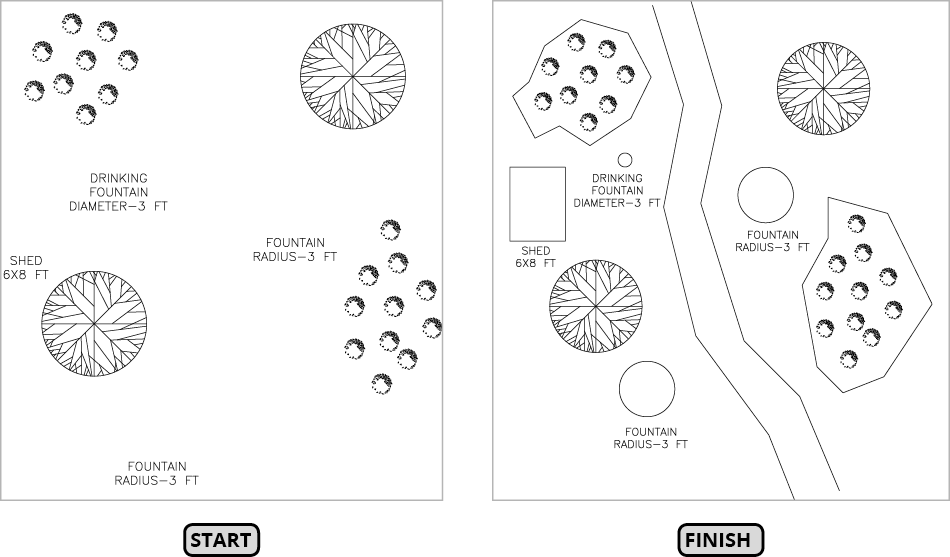
Mastering command input is fundamental to AutoCAD proficiency. In this hands-on exercise, you'll develop fluency with AutoCAD's command structure by completing the landscape site plan shown above. While the specific drawing tools will be explored comprehensively in the next chapter, this exercise focuses on building your command execution skills. The drawing represents a site plan with units set to decimal feet—a common standard in architectural and civil engineering projects.
Drawing Creation Timeline
Rectangle Tool Practice
Create a 6x8 foot rectangle using coordinate input
Line Tool Mastery
Draw boundaries around bush clusters with close option
Walkway Construction
Create walkway edges using multiple line segments
Circle Command Application
Add fountain elements using radius and diameter methods
This exercise uses a real-world site plan scenario with decimal feet units, providing practical experience with landscape architecture drawing conventions.
Entering Commands
Begin by opening the file Landscape.dwg. This file contains the foundation elements you'll build upon throughout this exercise.
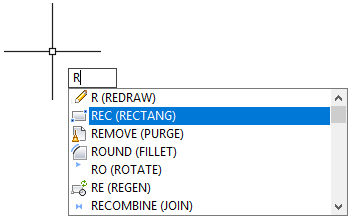
Type the letter R on your keyboard to demonstrate AutoCAD's intelligent command prediction. Notice how a list of commands beginning with "R" appears in the Dynamic Input display adjacent to your crosshair cursor. This predictive text feature, refined over AutoCAD's decades of development, significantly accelerates workflow once mastered. Navigate using either your mouse or the down arrow key to select REC (RECTANG), which activates the Rectangle tool
 .
.Observe the Command Line—this interface element serves as your primary communication channel with AutoCAD. It prompts you to specify the first corner while displaying available options. Click above the text SHED to establish the rectangle's lower-left corner. The Command Line updates, requesting the opposite corner with a new set of contextual options. Type 6,8 and press Enter to create a rectangle measuring 6 feet along the X-axis and 8 feet along the Y-axis. If the rectangle's position requires adjustment, use CTRL–Z to undo and recreate it with better placement.
Next, you'll create boundaries around the landscaped areas using the versatile Line tool
 . Press L Enter to initiate the Line Command. The Command Line responds with Specify First Point. Click outside the upper bush cluster to begin your first line segment.
The Command Line now displays:
Specify next point or
[Undo]:Notice how the Undo option appears—AutoCAD dynamically presents relevant options based on your current context. Click to complete the first segment. The Command Line maintains its current state, allowing you to continue. After creating the second segment, observe how the options expand:
Specify next point or
[Close/Undo]:The Close option now appears because you've established two segments, making a closed polygon possible. Continue clicking to create segments that encompass the bushes. For the final segment, press C Enter to close the shape and terminate the Line Command efficiently.
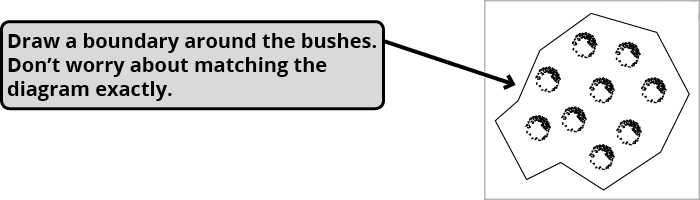
Right-click and select Repeat Line from the context menu to relaunch the Line Command—this demonstrates an alternative method for command repetition. Begin clicking around the second bush cluster. After creating three or four segments, press CTRL–Z or U Enter to undo one or two segments.
Pay careful attention to this behavior: while actively within a command, Undo only retracts the most recent step of that specific command session. This granular control proves invaluable when making minor adjustments during complex operations. Experiment by undoing several segments, then redrawing them to understand this workflow. Complete the boundary using the Close option to end the command. Now press CTRL–Z again—notice that the entire boundary disappears. Once a command concludes, Undo treats all steps within that command as a single action. Press CTRL–Y to restore the boundary, demonstrating the complementary Redo function.
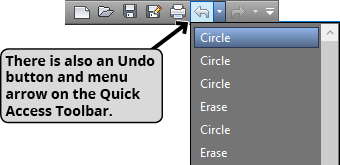
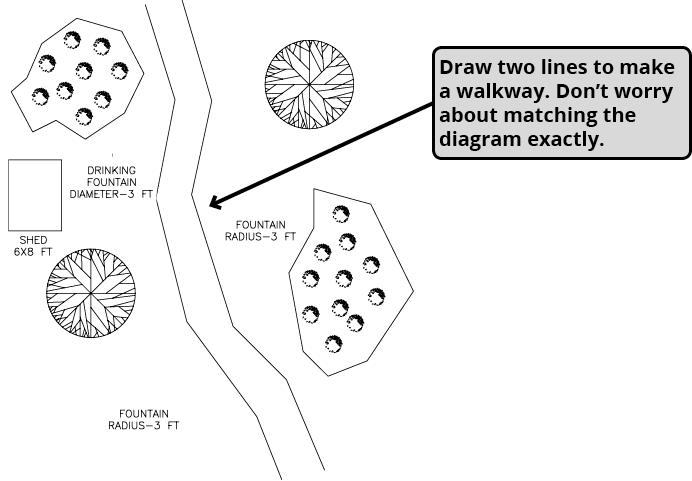
Since Redo was your most recent action, the Enter key cannot repeat the Line Command. This illustrates an important principle: Enter only repeats the last drawing command, not utility commands like Undo/Redo. Press L Enter to restart the Line command and draw the walkway's left edge from top to bottom. Upon completion, press Enter twice—once to end the current Line command, then again to restart it for drawing the right edge. This double-Enter technique becomes second nature with practice.
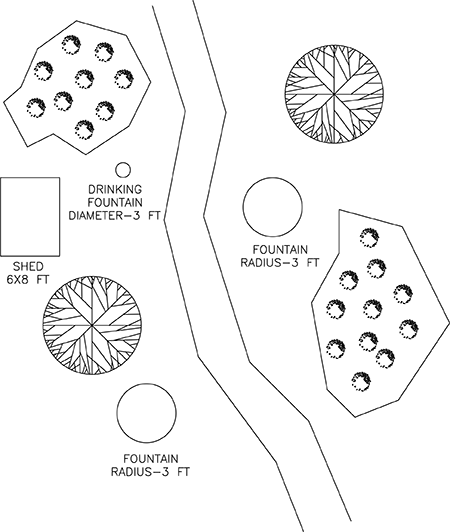
Press C Enter to initiate the Circle Command. This demonstrates AutoCAD's context sensitivity: when you pressed C Enter in step two, it selected the Close option because you were actively in the Line Command. With no active command, C Enter launches the Circle Command instead. The Command Line requests a center point—click above the upper FOUNTAIN text to establish the circle's center. With the center point set, AutoCAD requests a radius value. Type 3 and press Enter to specify the radius and complete the circle.
Press Enter to repeat the Circle Command, demonstrating the power of command repetition for similar objects. Click above the lower FOUNTAIN text to specify the new center point. Notice how the previous circle's radius appears in the Command Line within angle brackets:
<3>. These brackets indicate AutoCAD's default value—any parameter enclosed in<>brackets can be accepted by simply pressing Enter. This feature saves significant time when creating multiple similar objects. Press Enter to apply the radius of 3 and complete the circle.For the final circle, you'll specify diameter instead of radius, showcasing AutoCAD's flexibility in geometric input methods. Press the Spacebar to repeat the Circle Command—note that the spacebar serves as an alternative to Enter for command repetition. Initially, the Command Line won't display the Diameter option. Click above DRINKING FOUNTAIN to specify the center point. Once the center is established, the Diameter option becomes available in the Command Line. Press D Enter to select the Diameter option, then enter 3 for the diameter value. Your landscape drawing is now complete!
Rectangle Command Workflow
Initiate Command
Type 'R' and select REC (RECTANG) from Dynamic Input suggestions
Set First Corner
Click above the word SHED to establish lower left corner position
Define Dimensions
Type '6,8' and press Enter for 6-foot X-axis depth and 8-foot Y-axis width
Verify Result
Use CTRL-Z to undo if repositioning is needed
Command Entry Methods Comparison
| Feature | Keyboard Entry | Dynamic Input |
|---|---|---|
| Speed | Fast for known commands | Slower but guided |
| Accuracy | Requires memorization | Visual confirmation |
| Learning Curve | Steep initially | Beginner-friendly |
| Professional Use | Industry standard | Supporting tool |
Line Command Analysis
Within a command, Undo affects only the last step. After completing a command, Undo removes all steps taken within that entire command session.
Circle Command Variations
Center-Radius Method
Standard approach where you specify center point first, then enter radius value. Most common for precise circular elements.
Center-Diameter Method
Alternative approach using diameter instead of radius. Access with 'D' option after establishing center point for easier sizing.
Default Value Reuse
AutoCAD remembers last radius/diameter value in angle brackets. Press Enter to accept previous measurement for consistent sizing.
Both Spacebar and Enter key repeat the last command, but Enter may not work if another command like Redo was used recently. Spacebar is more reliable for command repetition.