What is XPath?
XPath (XML Path Language) represents one of the most powerful tools in a web scraper's arsenal. As a query language specifically designed for selecting nodes in XML and HTML documents, XPath transforms the complex task of data extraction into precise, surgical operations. While understanding HTML structure provides the foundation, XPath gives you the surgical precision to extract exactly what you need from any web document.
Think of XPath as a GPS system for navigating HTML documents. Just as GPS coordinates can pinpoint any location on Earth, XPath expressions can locate any element, attribute, or text content within a webpage's structure. For professionals working with data extraction, mastering XPath means the difference between spending hours manually copying data and automating the entire process in minutes.
To maximize your XPath efficiency, we strongly recommend installing browser extensions like XPath Helper for Chrome or similar tools for other browsers. These extensions provide real-time feedback as you craft your expressions, dramatically reducing development time and eliminating guesswork. XPath expressions can target single elements for precision work or capture multiple elements in bulk operations—the approach depends entirely on your data extraction goals.
XPath Core Concepts
Query Language
XPath is specifically designed for selecting nodes in XML and HTML documents. It provides a standardized way to navigate document structures.
Navigation Tool
Similar to file system paths, XPath allows you to traverse HTML document trees from any starting point to your target elements.
Extraction Power
Select single elements, multiple elements, attributes, or text content with precise control over what data you extract.
XPath vs File System Navigation
| Feature | File System | XPath |
|---|---|---|
| Root Reference | C:\ | html |
| Path Separator | \ | / |
| Search All Locations | Not Available | // |
| Target Selection | folder/file.txt | html/head/title |
XPath Expressions: Your Navigation System
Building on our previous discussion of HTML document structure, let's examine how XPath expressions navigate the hierarchical relationships between elements. The document tree below illustrates these parent-child relationships that form the backbone of effective XPath queries:
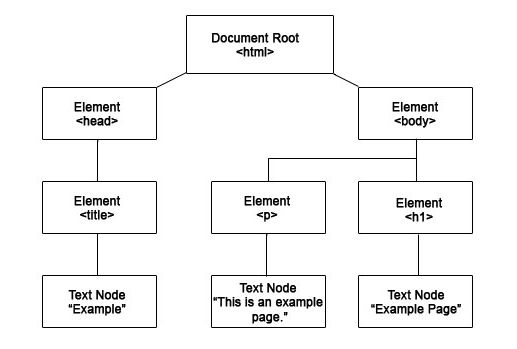
In this document structure, selecting the title element requires the path expression: html/head/title. This absolute path starts from the root and follows each branch to reach the target. Before continuing, try constructing the paths for the p and h1 elements yourself—you'll find the solutions at the article's end.
This navigation method, called a location path, enables systematic movement from any context node to your target element. The process mirrors how file systems organize directories and subdirectories on your computer. A crucial concept to grasp: the context node shifts with each step in your path. When evaluating the 'title' node in our example, 'head' becomes the current context node, not the original 'html' root.
However, absolute paths from the HTML root prove unnecessarily verbose for most practical applications. In production environments, you'll typically focus on specific elements regardless of their absolute position in the document hierarchy. For our title example, the expression //title achieves the same result with far greater efficiency.
Let's decode this streamlined syntax: The double forward slash '//' instructs XPath to search the entire document from root to leaf, while 'title' specifies the target element name. This approach proves invaluable when document structures vary or when you need to extract similar elements from multiple page layouts.
Test your comprehension with this expression: //h3/a. Can you translate this XPath query into plain English?
If you interpreted this as "Select all anchor (a) elements that are direct children of h3 elements," you've grasped the fundamental concept perfectly. This pattern—combining descendant searches with specific parent-child relationships—forms the foundation of most professional web scraping operations.
Building Location Paths
Start from Context Node
Begin navigation from your current position in the document tree, typically the root HTML node
Navigate with Forward Slash
Use forward slashes to move from parent to child elements: html/head/title
Context Changes Each Step
Remember that your context node updates as you navigate deeper into the document structure
Use Global Search
Skip explicit paths with double forward slash (//) to search from document root: //title
We don't always have to start from our root HTML node. In real life, we don't really care about calling the explicit path, we just want to target certain nodes that interest us.XPath Syntax Examples
Explicit Path
html/head/title - Navigate step by step from HTML root to title element through specific parent nodes.
Global Search
//title - Search entire document for any title element regardless of its position in the hierarchy.
Child Navigation
//h3/a - Find all anchor elements that are direct children of h3 heading elements.
XPath Multiple Selection: Real-World Application
Theory without practice remains academic exercise. Let's apply XPath techniques to extract real data from a live website, demonstrating the practical power of these concepts. We'll target apartment listing titles from a popular classified site—a common business intelligence and market research task.
For this exercise, visit any major classified listings site with apartment rentals. Our objective: extract all posting titles efficiently using XPath expressions. This type of bulk data extraction proves essential for market analysis, competitive research, and automated content aggregation.
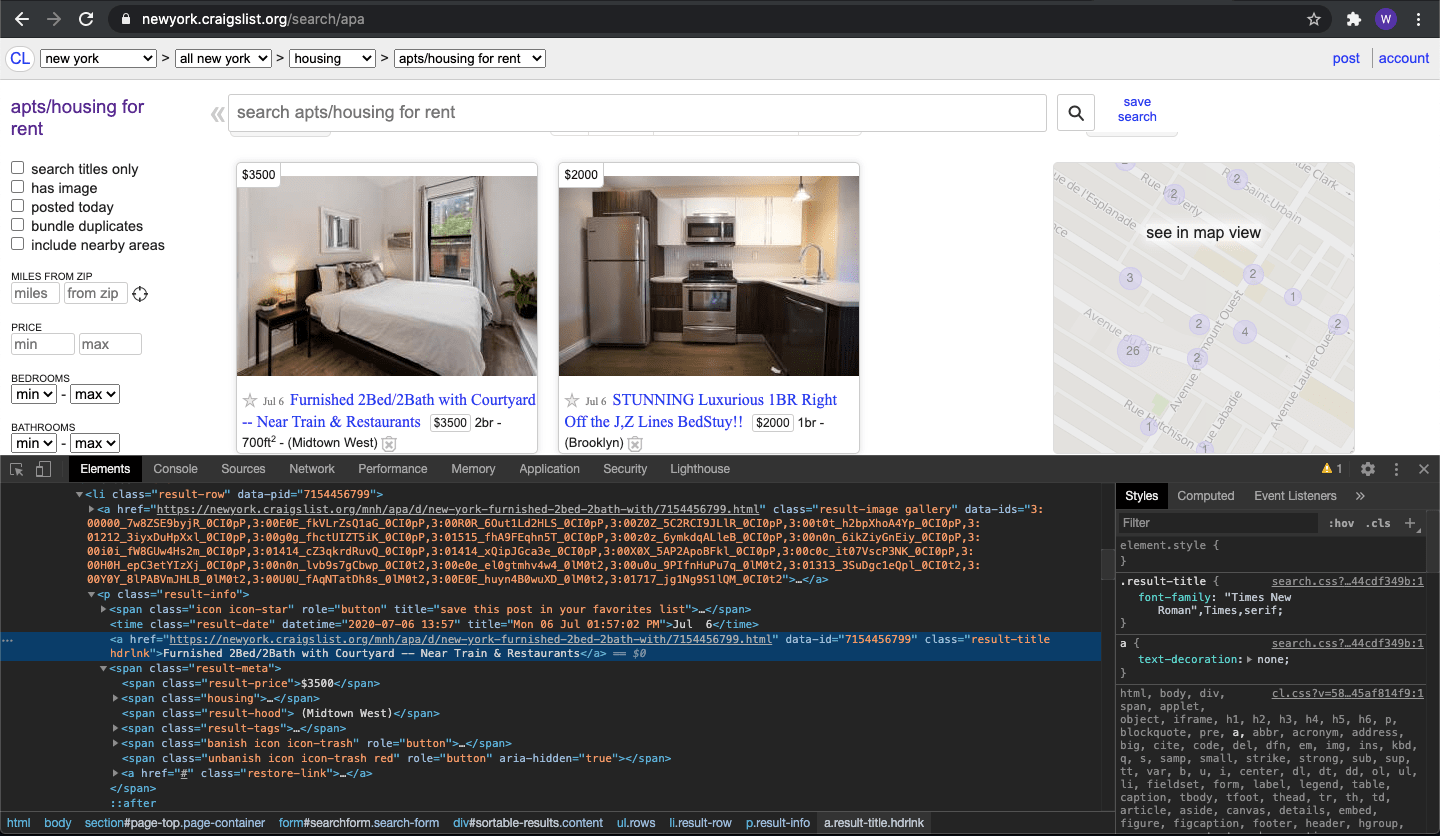 Begin by right-clicking anywhere on the target webpage and selecting "Inspect" from the context menu. This launches Chrome's Developer Tools, revealing the underlying HTML structure that powers the visual interface. Next, locate the element inspector tool—the icon resembling a cursor hovering over a square in the Developer Tools toolbar's upper-left corner.
Activate the inspector tool and click directly on an apartment listing title. The browser will highlight the corresponding HTML section, revealing the element structure and class names that XPath will target. This visual mapping between page elements and HTML code represents the crucial first step in any scraping project.
Now activate your XPath Helper extension by clicking the puzzle piece icon in Chrome's toolbar and selecting the XPath Helper option. The extension opens two panels: a query input field for your XPath expressions and a results preview showing matched elements. This real-time feedback accelerates development and helps validate your expressions before implementing them in production code.
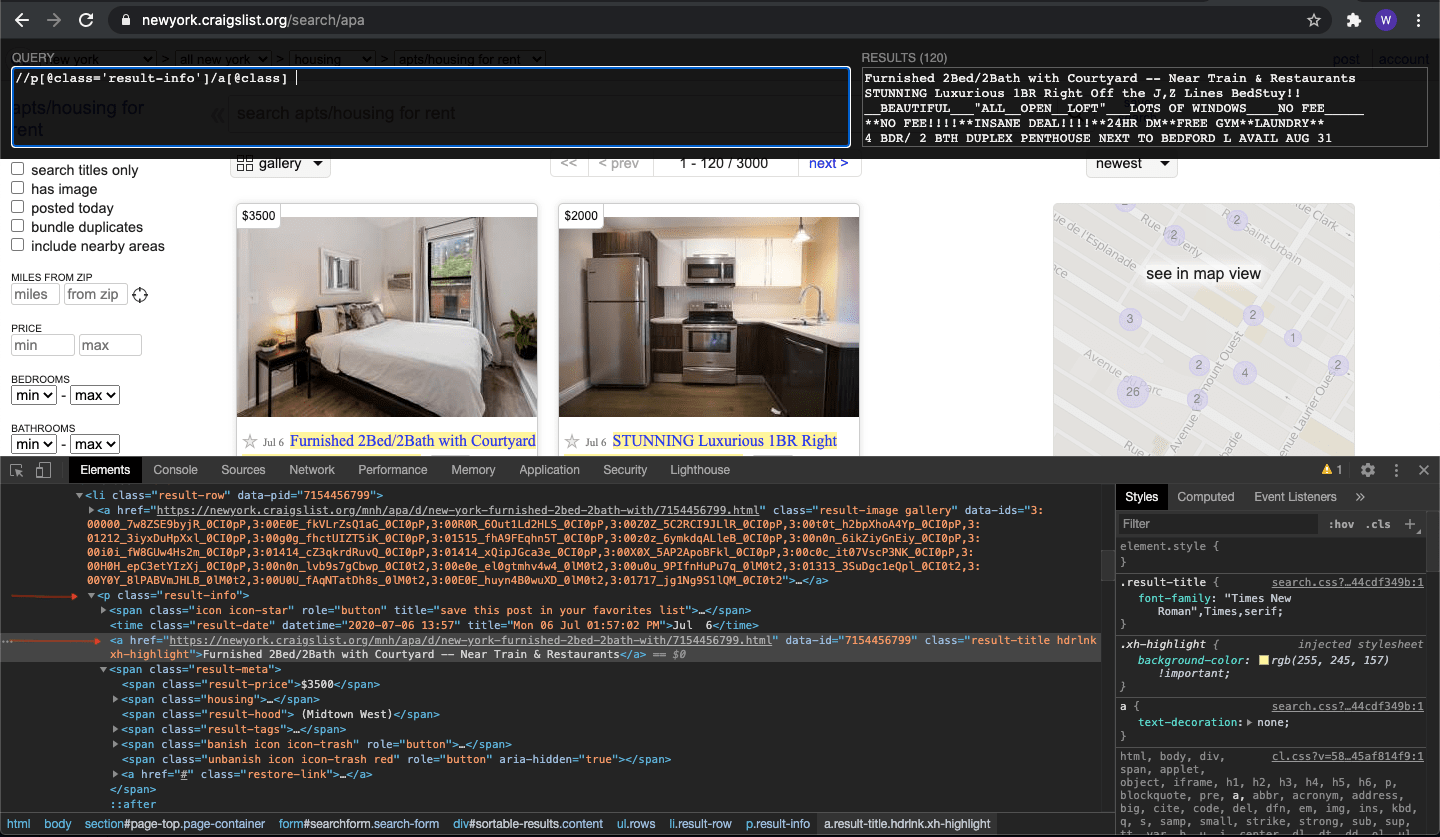 Let's construct our title extraction query step by step. The expression //p[@class="result-info"]/a[@class] demonstrates several advanced XPath concepts working together. The initial '//' performs a document-wide search for paragraph elements. The bracket notation [@class="result-info"] filters results to only paragraphs containing that specific class attribute.
The forward slash indicates we're targeting direct child elements, specifically anchor (a) elements. The final [@class] ensures we only select anchors that possess any class attribute, filtering out unstructured links. This multi-layered approach ensures precision while maintaining flexibility across different page layouts.
The results panel should now display all apartment listing titles from the current page—typically 100+ entries extracted in seconds. You can copy this data directly into Excel or any data analysis tool for further processing, market analysis, or competitive intelligence gathering.
Ready for a practical challenge? Construct an XPath expression to extract the rental price for each listing. Analyze the HTML structure using the inspector tool, identify the pricing elements, and craft your query. Attempt this independently before checking the solution below—hands-on practice accelerates mastery more effectively than passive reading.
The solution: //span[@class='result-price'] targets all span elements containing the 'result-price' class attribute. The document-wide search operator '//' locates every span element, while the class filter ensures you're capturing price data exclusively. If you arrived at this solution independently, you've demonstrated solid grasp of XPath fundamentals.
For those still developing these skills, don't be discouraged—XPath proficiency develops through consistent practice across different websites and use cases. Try extracting additional data points like posting dates, locations, or property features. Each successful extraction builds pattern recognition skills that accelerate future projects.
By combining title and price extraction queries, you've essentially scraped comprehensive data for 100+ property listings in under 15 minutes—a task that would require hours of manual effort. This efficiency multiplier explains why XPath skills command premium salaries in data science, business intelligence, and digital marketing roles.
Answer to earlier challenge: p element path: html/body/p | h1 element path: html/body/h1
Practical XPath Web Scraping Workflow
Open Browser Inspector
Right-click on the target website and select 'Inspect' to access the HTML document structure
Activate Element Selector
Click the mouse pointer icon in the inspector to enable element selection mode
Target Specific Elements
Click on the content you want to scrape to highlight the corresponding HTML structure
Launch XPath Helper
Activate the XPath Helper Chrome extension to test and refine your XPath queries
Build and Test Query
Input your XPath expression and verify results in real-time before implementing
Following this workflow, you can scrape 120 Craigslist posts with names and prices in under 15 minutes. This demonstrates the efficiency of XPath for large-scale data extraction tasks.
Advanced XPath Techniques
Class Targeting
Use [@class='class-name'] to select elements with specific CSS classes for precise targeting of styled content.
Attribute Selection
Target elements by any attribute with [@attribute='value'] syntax, enabling selection based on IDs, names, or custom attributes.
Child Navigation
Combine parent selection with child navigation using forward slashes to drill down to exactly the content you need.
XPath Best Practices
Real-time feedback prevents errors and speeds up development
Simpler queries are more maintainable and less brittle
Class names are less likely to change than complex nested structures
Practice with real examples builds practical skills faster
Copy results to Excel or CSV for further analysis and processing