Topics Covered in This Lightroom Tutorial:
Master the Keywording Panel, streamline workflow with keyword filtering, and organize content using nested keyword hierarchies for professional-grade photo management.
Core Keywording Concepts
Keywording Panel
Learn to apply keywords directly to your photos using the bottom text field in the Keywording panel. Essential for photo organization and searchability.
Library Filters
Master text-based filtering using keywords to quickly find specific photos. Partial keyword matching makes searching even faster.
Nested Keywords
Organize keywords hierarchically by creating parent categories like Europe, USA, and Animal to keep your keyword list manageable.
Exercise Preview
Exercise Overview
Effective keywording is the foundation of professional photo management. In this comprehensive exercise, you'll master keyword tagging to create intelligent organizational systems that work seamlessly with the collections you established in previous exercises. This approach transforms your Lightroom catalog from a simple storage system into a powerful, searchable database that scales with your growing photo library.
Workflow Overview
Apply Location Keywords
Add England and Wyoming keywords to respective photo folders using the Keywording panel
Test Keyword Filtering
Use Keyword List arrows and Library Filter text search to find photos by keywords
Create Keyword Hierarchy
Build nested keyword structure with Europe, USA, and Animal parent categories
Keyword Lists
We'll begin by applying location-based keywords to establish a geographical organization system. This foundational approach ensures your images remain discoverable as your catalog expands.
Ensure you've completed exercises 1A–1D before proceeding. These foundational exercises establish the folder structure essential for this workflow.
Navigate to the Library module if you're not already there.
In the Folders panel, select the England subfolder. If it's not visible, expand the Library folder to reveal all subfolders.
Switch to Grid View by pressing G if you're currently in a different view mode.
Select all photos using Cmd–A (Mac) or Ctrl–A (Windows). This bulk selection approach maximizes efficiency when applying consistent keywords.
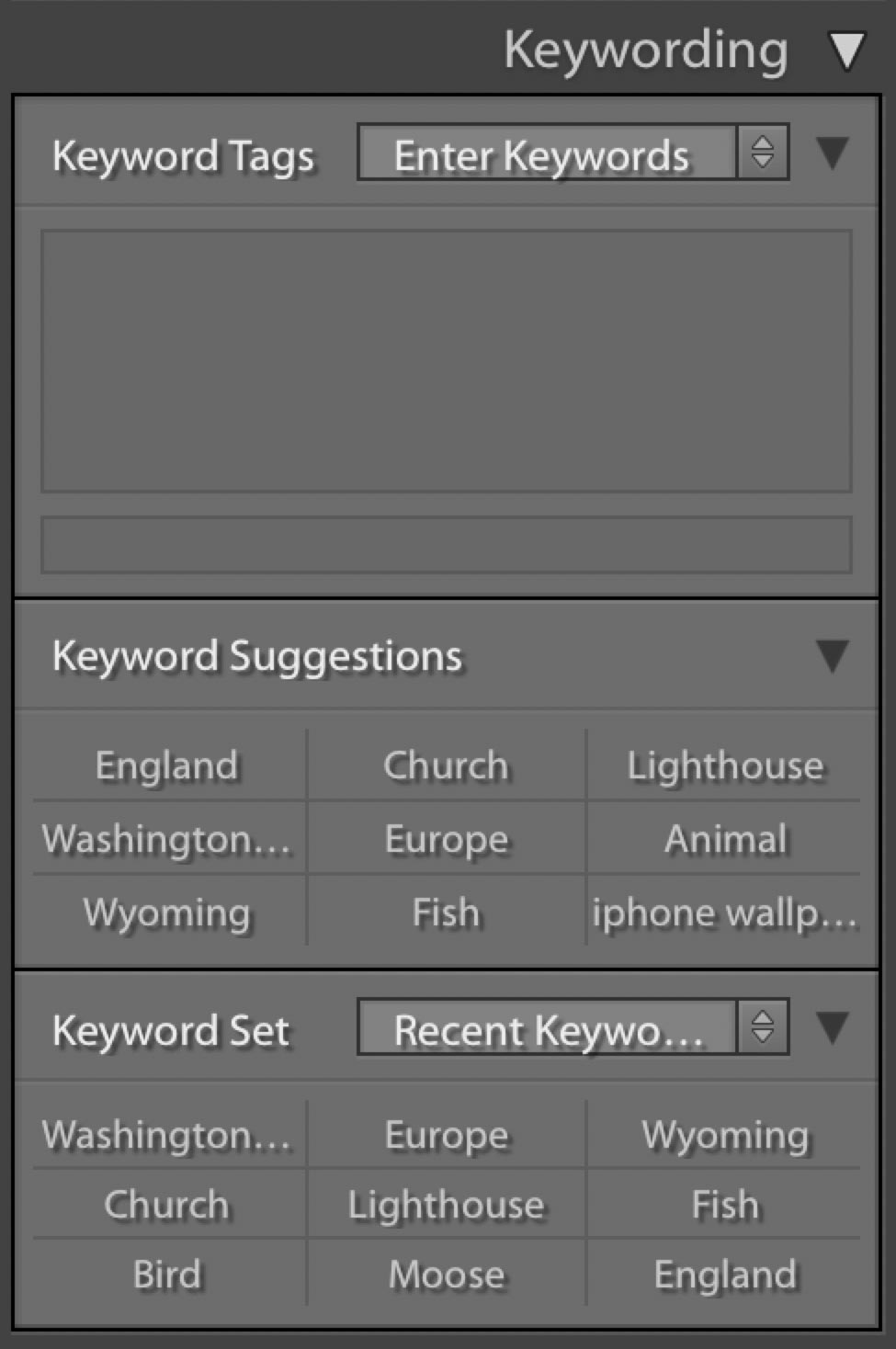
Locate and expand the Keywording panel in the right-side panel group if it's currently collapsed.
In the Keywording panel, click in the smaller text field at the bottom (avoid the upper field that displays "Animal").
Type England to apply this location keyword to all selected images.
Press Return (Mac) or Enter (Windows) to confirm the keyword application.
In the Folders panel, select the Wyoming subfolder to switch your focus to these images.
Select all Wyoming photos using Cmd–A (Mac) or Ctrl–A (Windows).
Click in the bottom text field of the Keywording panel.
Type Wyoming to establish consistent geographical tagging.
Press Return (Mac) or Enter (Windows) to apply the keyword.
In the Catalog panel on the left, click All Photographs to view your entire collection.
The Keyword List panel, located in the right panel group (scroll down if necessary), serves as your command center for keyword-based filtering. Expand this panel if it's currently collapsed. This panel displays all keywords in your catalog and their associated photo counts.
Hover over England in the Keyword List, then click the arrow that appears on the right side.
Lightroom instantly filters to display only England-tagged photos, demonstrating the power of systematic keywording.
In the Keyword List panel, hover over Wyoming, then click its corresponding arrow.
Lightroom now displays exclusively Wyoming-tagged images, showcasing how keywords create instant, precise photo retrieval.
Keyword Application Steps
Press G to ensure you're in the correct view mode
Use Cmd-A (Mac) or Ctrl-A (Windows) for bulk selection
Use the smaller bottom field in the Keywording panel, not the Animal field above
Keywords are immediately applied to all selected photos
Click the arrow that appears when you mouse over keywords in the Keyword List panel to instantly filter and display only photos with that specific keyword.
Keywords in Library Filters
Beyond the Keyword List panel, Lightroom's Library Filter offers advanced search capabilities that professional photographers rely on for complex queries and partial keyword matching.
In the Library Filter panel at the top of the Library module, click the None tab to clear any existing filters.
Click the Text tab in the Library Filter panel to access text-based search options.
From the first dropdown menu (currently displaying Any Searchable Field), select Keywords to focus your search specifically on keyword data.
From the second dropdown menu, select Contain to enable partial keyword matching—a powerful feature for rapid searching.
In the text field to the right, type Wyom.
Notice how just these four letters instantly filter to show only Wyoming-tagged photos. This partial matching capability dramatically speeds up workflow when dealing with large catalogs.
Replace the current text with Eng in the text field.
The filter now displays only England-tagged photos, demonstrating how minimal typing yields precise results.
Keyword Search Methods
| Feature | Keyword List Panel | Library Filter Text |
|---|---|---|
| Access Method | Mouse over keyword, click arrow | Text tab, Keywords dropdown |
| Search Capability | Exact keyword match only | Partial text matching |
| Speed | One click filtering | Type partial keyword |
| Best For | Quick keyword browsing | Fast partial searches |
Nested Keywords
As your keyword vocabulary expands, organization becomes crucial. Nested keywords create hierarchical structures that mirror real-world relationships, making your catalog more intuitive and maintainable. We'll create keyword sets that align with your Collection Sets from Exercise 1C: Europe and USA.
In the Keyword List panel, click the Create New Keyword Tag button
 .
.- In the Create Keyword Tag dialog:
- For Keyword Name, enter Europe.
- Under Creation Options, uncheck all options since we're creating a parent keyword that won't be applied directly to images.
- Click Create to establish this organizational container.
Repeat the previous step, entering USA for the Keyword Name to create your second geographical parent keyword.
In the Keyword List panel, drag the England keyword onto the Europe keyword to create a nested relationship.
Drag the Wyoming keyword onto the USA keyword to nest it appropriately.
Your keyword hierarchy now reflects logical geographical relationships: England nested under Europe, Wyoming under USA. This structure will scale beautifully as you add more locations to your catalog.
Click the None tab at the top of the Library to clear all filters and return to viewing all photographs.
Select the first moose photograph (20110826_YourName_031) to begin adding subject-based keywords.
Ensure the Keywording panel is expanded in the right panel group.
Click in the bottom text field of the Keywording panel.
Type Moose and press Return (Mac) or Enter (Windows) to apply this descriptive keyword.
Select the bird photograph (20110831_YourName_038) in the Library.
In the Keywording panel, click the bottom text field.
Type Bird and press Return (Mac) or Enter (Windows).
Select the fish photograph (20110824_YourName_027) in the Library.
In the Keywording panel, click the bottom text field.
Type Fish and press Return (Mac) or Enter (Windows).
Examine the Keyword List panel to see your newly added keywords: Moose, Bird, and Fish now appear in the list.
Drag each animal keyword (Moose, Bird, Fish) into the existing Animal keyword to create subject-based nesting.
Your keyword architecture now features both geographical and subject-based hierarchies. The Animal parent keyword contains specific species, while geographical keywords group by location. This dual organizational approach creates a robust, professional-grade system that supports complex searches and maintains logical relationships as your catalog grows. This methodology scales effectively whether you're managing hundreds or hundreds of thousands of images.
Keyword Organization Process
Create Parent Keywords
Add Europe and USA keywords with Creation Options unchecked
Nest Location Keywords
Drag England into Europe, Wyoming into USA
Add Animal Keywords
Apply Moose, Bird, and Fish keywords to specific photos
Organize Animal Keywords
Drag Moose, Bird, Fish into existing Animal folder
Nested keywords create a shorter, more navigable keyword list while maintaining detailed tagging. This hierarchical structure scales efficiently as your photo library grows.