Topics Covered in This JavaScript & JQuery Tutorial:
Master the fundamentals of jQuery syntax and event handling: Adding Variable References (JQuery vs. JavaScript Syntax), Implementing Click Event Handlers with the On() Method, Creating Dynamic Filter Button Toggles Using JQuery, and Understanding the Strategic Difference Between the All Button and Category-Specific Buttons
Exercise Preview
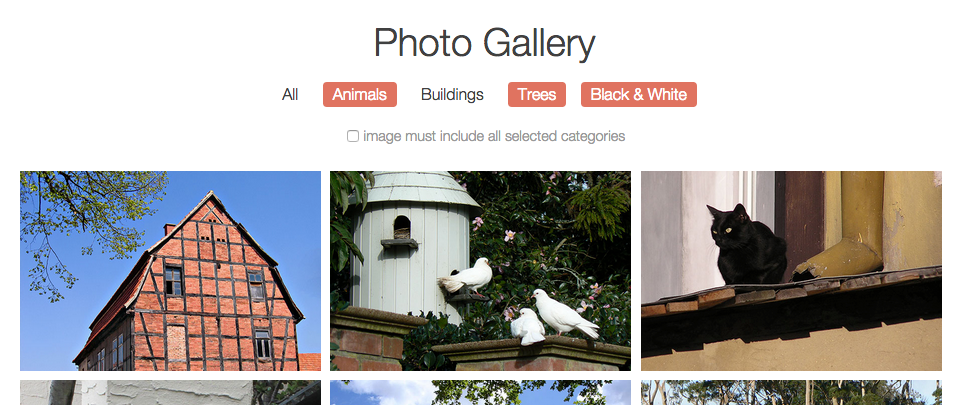
Exercise Overview
In our previous exercises, we built a robust filtering system for a photo gallery website using standard JavaScript. While functional, that approach required verbose syntax and explicit loops for DOM manipulation. In this comprehensive two-part exercise series, you'll discover how jQuery dramatically simplifies this same functionality with more intuitive, concise code.
This first installment focuses on implementing the interactive button selection and deselection behavior in the navigation. You'll learn how jQuery's streamlined syntax reduces code complexity while maintaining the same logical structure. The photo filtering functionality will be addressed in the subsequent exercise, allowing you to build understanding incrementally.
This two-part series recreates JavaScript photo gallery functionality using jQuery. Part 1 focuses on button selection/deselection, while Part 2 will handle photo filtering logic.
Getting Started
Launch your preferred code editor if it isn't already running.
Close any existing files to maintain a clean workspace.
Navigate to the Photo-Filter-jQuery-1 folder located in Desktop > Class Files > yourname-JavaScript jQuery Class. If your editor supports project folders (like Visual Studio Code), consider opening the entire folder for easier file navigation.
Open gallery-with-js.html from the Photo-Filter-jQuery-1 folder. This serves as our reference implementation—the complete photo gallery filter built with standard JavaScript.
Open gallery-with-jQuery.html. This file contains the same HTML structure and CSS styling, but with no JavaScript functionality yet implemented—providing a clean foundation for our jQuery implementation.
Preview gallery-with-jQuery.html in Chrome (we'll leverage Chrome DevTools for debugging throughout this exercise).
Notice that all photos display by default and the filter buttons are non-functional. This is expected behavior at this stage. Keep this preview tab open—we'll return to it frequently to test our progress.
Return to your code editor to begin implementation.
Keep gallery-with-js.html accessible for reference. We'll mirror the same logical structure and functionality using jQuery's more efficient syntax, but won't modify this file.
Focus your editing efforts on gallery-with-jQuery.html—this is where we'll implement our jQuery solution.
Setup Requirements
Contains both JavaScript and jQuery versions for comparison
Initial state shows all photos with non-functional filters
Use existing JavaScript logic as implementation guide
Adding Variable References: JQuery Vs. JavaScript Syntax
The first step in any jQuery implementation involves establishing our DOM element references and initializing the jQuery environment. You'll immediately notice how jQuery's selector syntax is more intuitive than standard JavaScript's verbose DOM methods.
In gallery-with-jQuery.html, locate line 151 and add the jQuery library link along with our custom script container:
</div>
   <script src="js/jquery-2.1.0.min.js"></script>
   <script>

   </script>
</body>
</html>
Reference the gallery-with-js.html file around line 152, where we used the standard
window.onloadfunction to ensure DOM readiness.jQuery provides a more reliable and faster-loading alternative. In gallery-with-jQuery.html on line 153, implement jQuery's document ready function:
<script src="js/jquery-2.1.0.min.js"></script>
<script>
   $(document).ready(function() {

   });
</script>
This jQuery method fires as soon as the DOM is ready, without waiting for images and other resources to load—providing better user experience than
window.onload.Examine gallery-with-js.html around line 154 to locate the // grabbing elements comment. Notice how standard JavaScript required
document.getElementByIdand similar verbose methods for element selection.jQuery introduces a powerful convention: prefix variables containing jQuery objects with a $ symbol. This visual indicator helps distinguish jQuery objects from standard JavaScript variables, improving code readability and maintenance. In gallery-with-jQuery.html around line 155, declare your first jQuery variable:
<script>
   $(document).ready(function() {

      var $filterNav = $('nav a'),

   });
</script>
Continue building your element reference collection by targeting the all-button specifically:
$(document).ready(function() {

   var $filterNav = $('nav a'),
       $allButton = $('#all-button'),

});
Notice how we're using comma-separated variable declarations—a JavaScript best practice that reduces repetition. The semicolon is reserved for the final declaration only.
Add the selectedArray variable. Since this stores data rather than DOM elements, it doesn't require the jQuery object wrapper or the $ prefix:
$(document).ready(function() {

   var $filterNav = $('nav a'),
       $allButton = $('#all-button'),
       selectedArray = [],

});
Complete your variable declarations with the remaining DOM references:
$(document).ready(function() {

   var $filterNav = $('nav a'),
       $allButton = $('#all-button'),
       selectedArray = [],
       $imageContainers = $('.gallery div'),
       $exclusive = $('#exclusive');

});
Compare this clean, readable syntax to the standard JavaScript equivalent in your reference file—jQuery's CSS-style selectors are far more intuitive than traditional DOM methods.
JavaScript vs jQuery Variable Declaration
| Feature | JavaScript | jQuery |
|---|---|---|
| Document Ready | window.onload = function() | $(document).ready(function()) |
| Element Selection | document.getElementById('id') | $('#id') |
| Variable Naming | var filterNav | var $filterNav |
Prefix jQuery object variables with $ to distinguish them from regular JavaScript variables. This improves code readability and debugging.
Attaching a Click Event Handler Using the On() Method
Event handling represents one of jQuery's most significant advantages over standard JavaScript. Where vanilla JavaScript requires explicit loops to attach events to multiple elements, jQuery handles this automatically with a single method call.
In gallery-with-js.html, locate the for loop around line 253. Notice how standard JavaScript required us to iterate through each navigation element individually, manually attaching onclick handlers and assigning functions. This verbose approach is error-prone and difficult to maintain.
jQuery eliminates this complexity entirely. When you apply a method to a jQuery collection, it automatically executes across all matched elements—no explicit looping required.
In gallery-with-jQuery.html around line 161, implement jQuery's streamlined event handling:
$(document).ready(function() {Five Vars Omitted To Save Space
$exclusive = $('#exclusive');

   $filterNav.click(function() {
      console.log('clicked');
   });

});
Save the file and test this implementation.
Switch to Chrome where gallery-with-jQuery.html should still be open, then reload the page.
Open Chrome's Developer Console using Cmd–Opt–J (Mac) or CTRL–Shift–J (Windows).
Click any navigation button to verify that "clicked" appears in the Console. This confirms our event handler is working across all navigation elements.
While the
click()method works perfectly for this scenario, jQuery offers a more flexible and powerful alternative: theon()method. This approach provides several advantages, including the ability to attach multiple event handlers to the same element and better support for dynamic content.Open a new browser tab and navigate to the official jQuery API documentation at: api.jQuery.com
Use the search functionality in the upper right corner to search for: .on()
Select .on() from the search results.
Scroll to the Direct and delegated events section to examine the syntax examples.

The
on()method accepts the event type as a string parameter, making it adaptable for any event type (click, change, hover, focus, etc.). More importantly, multipleon()handlers can be chained together, whereas theclick()method would override previous handlers.Return to your code editor and upgrade the event handler implementation.
Around line 161, replace the
click()method with the more robuston()syntax:$filterNav.on('click', function() { console.log('clicked'); });Save the file and verify the functionality remains unchanged.
Return to Chrome, reload gallery-with-jQuery.html, and test the navigation buttons with the Console open.
Confirm that clicking navigation buttons still logs "clicked" to the Console, demonstrating that our enhanced implementation works identically.
Event Handler Implementation
Basic Click Method
Start with $filterNav.click(function()) to attach click handlers to all navigation elements automatically
Upgrade to On() Method
Replace with $filterNav.on('click', function()) for better event management and multiple handler support
Test in Console
Use Chrome DevTools Console to verify click events are firing correctly
The .on() method allows multiple event handlers on the same element and provides better flexibility for dynamic content manipulation.
Toggling the Filter Buttons Using JQuery
Now we'll implement the core functionality that visually toggles button states when users interact with them. This involves reading and manipulating HTML data attributes—a common pattern in modern web development.
Return to your code editor and remove the temporary console.log('clicked'); statement from line 162.
Examine the standard JavaScript implementation in gallery-with-js.html around line 255. Notice the
toggleCategory(this);function call. Thethiskeyword refers to the specific DOM element that triggered the event.In jQuery, we need to wrap the
thisreference in a jQuery object to access jQuery's methods and properties.In gallery-with-jQuery.html, replace the console.log statement with our function call:
$filterNav.on('click', function() {
   toggleCategory($(this));
});
The
$(this)syntax converts the raw DOM element into a jQuery object, enabling us to use jQuery methods likeattr()for attribute manipulation.Create the toggleCategory function structure around line 161:
$exclusive = $('#exclusive');

function toggleCategory(filterChoice) {

}

$filterNav.on('click', function() {
   toggleCategory($(this));
});
Study the standard JavaScript version of this function in gallery-with-js.html around lines 163–168. The logic reads the current
data-selectedattribute value and toggles it between 'yes' and 'no' states.jQuery's
attr()method simplifies both reading and writing HTML attributes compared to JavaScript's more verbosegetAttribute()andsetAttribute()methods.Implement the attribute toggling logic in gallery-with-jQuery.html:
function toggleCategory(filterChoice) {
   if(filterChoice.attr('data-selected') == 'no') {
      filterChoice.attr('data-selected', 'yes');
   } else {
      filterChoice.attr('data-selected', 'no');
   }
}
Save the file, switch to Chrome, and reload gallery-with-jQuery.html.
Test the toggle functionality by clicking navigation buttons. You should see the visual state changes as buttons highlight and unhighlight, indicating that the data attributes are updating correctly.
Remember that we're calling $(this) because we're working inside the jQuery objectAttribute Manipulation Methods
| Feature | JavaScript | jQuery |
|---|---|---|
| Get Attribute | element.getAttribute('data-selected') | element.attr('data-selected') |
| Set Attribute | element.setAttribute('data-selected', 'yes') | element.attr('data-selected', 'yes') |
The All Button Vs. the Rest of the Buttons
The final piece of our button logic implements mutually exclusive behavior between the "All" button and category-specific buttons. This creates intuitive user experience by ensuring logical filter combinations.
We need to implement logic ensuring that when users select "All," other category buttons deselect automatically. Conversely, selecting any specific category should deselect the "All" button. Return to your code editor.
In gallery-with-js.html around line 164, locate the deselectOthers(filterChoice); function call. This handles the mutual exclusion logic.
In gallery-with-jQuery.html around line 163, integrate the deselectOthers call:
function toggleCategory(filterChoice) {
   if(filterChoice.attr('data-selected') == 'no') {
      deselectOthers(filterChoice);
      filterChoice.attr('data-selected', 'yes');
   } else {
      filterChoice.attr('data-selected', 'no');
   }
}
Examine the standard JavaScript version of the deselectOthers function in gallery-with-js.html starting around line 171 to understand the intended logic flow.
Create the deselectOthers function structure in gallery-with-jQuery.html around line 170:
function toggleCategory(filterChoice) {Code Omitted To Save Space
}

function deselectOthers(filterChoice) {

}

$filterNav.on('click', function() {
We need to determine whether the clicked element is the "All" button or a category-specific button. jQuery's
is()method provides elegant element comparison, replacing JavaScript's equality operators with a more reliable approach:function deselectOthers(filterChoice) { if(filterChoice.is($allButton)) { console.log('yes'); } else { console.log('no'); } }Save the file, switch to Chrome, and reload gallery-with-jQuery.html.
Open the Console and test the detection logic by clicking various navigation buttons.
Click any category button (Animals, Buildings, Trees, or Black & White) to see "no" in the Console.
Click the All button to see "yes" in the Console. This confirms our element detection is working correctly.
Return to your code editor to implement the actual deselection logic.
Study gallery-with-js.html around lines 173–175. The original JavaScript version required an explicit for loop to iterate through navigation elements. jQuery eliminates this complexity by automatically applying methods to all elements in a collection.
In gallery-with-jQuery.html around line 172, replace the console.log with the actual deselection logic:
function deselectOthers(filterChoice) {
   if(filterChoice.is($allButton)) {
      $filterNav.attr('data-selected', 'no');
   } else {
      console.log('no');
   }
}
This single line replaces multiple lines of JavaScript looping code, demonstrating jQuery's power in DOM manipulation.
Complete the mutual exclusion logic by handling the opposite case—when a category button is clicked, the All button should deselect:
function deselectOthers(filterChoice) {
   if(filterChoice.is($allButton)) {
      $filterNav.attr('data-selected', 'no');
   } else {
      $allButton.attr('data-selected', 'no');
   }
}
Save the file, return to Chrome, and reload gallery-with-jQuery.html.
Test the complete mutual exclusion behavior: Notice the All button starts selected by default. Click any category button and observe how the All button automatically deselects.
Click the All button and verify that all other category buttons become deselected. This behavior matches professional UI patterns and provides intuitive user experience.
Keep your files open in the code editor—you'll continue building upon this foundation in the next exercise where we'll implement the actual photo filtering functionality.
For reference implementation comparison, navigate to Desktop > Class Files > yourname-JavaScript jQuery Class > Done-Files > Photo-Filter-jQuery-1.
Exclusive Button Logic Implementation
Add deselectOthers() Call
Insert deselectOthers(filterChoice) before setting data-selected to 'yes' in toggleCategory function
Implement Button Detection
Use filterChoice.is($allButton) method to determine if All button was clicked
Handle Mutual Exclusivity
When All is selected, deselect all others. When others are selected, deselect All button.
jQuery automatically applies attr() changes to all selected elements without requiring explicit loops, significantly reducing code complexity.