Layout View: Navigating, Zooming, Etc.
Mastering navigation in the Layout view is essential for efficient document review and editing. This view provides the most accurate representation of how your content will appear in its final form, making precise navigation crucial for professional work.
Zooming in & Out
Effective zoom control allows you to seamlessly shift between detailed editing and comprehensive document overview, enhancing both precision and productivity.
Using the Tool:
Select the Zoom tool  and:
and:
| To zoom in: | Click directly on any element you want to examine more closely. The view will center and magnify around your click point, allowing for precise detail work. |
| To zoom out: | Hold Option (Mac) or ALT (Windows) and click anywhere on-screen to pull back for a broader perspective. |
Using Keystrokes:
For rapid zoom adjustments without switching tools, these keyboard shortcuts are indispensable for maintaining workflow momentum:
| Zoom in: | Command–Plus(+) (Mac) or Control–Plus(+) (Windows) |
| Zoom out: | Command–Minus(-) (Mac) or Control–Minus(-) (Windows) |
Zoom Tool Method
Select Zoom Tool
Activate the zoom tool from your toolbar to begin magnification control
Click to Zoom In
Click directly on any element you want to see larger on screen for instant magnification
Hold Modifier to Zoom Out
Hold Option on Mac or ALT on Windows while clicking to reduce magnification level
Zoom Methods Comparison
| Feature | Tool Method | Keyboard Method |
|---|---|---|
| Zoom In | Click with Zoom tool | Command/Control + Plus |
| Zoom Out | Option/ALT + Click | Command/Control + Minus |
| Speed | Requires tool selection | Instant from any tool |
| Precision | Click exact target area | Fixed increment levels |
Scrolling Around a Page
Smooth document navigation is critical when working with complex layouts or lengthy publications. These methods ensure you can move efficiently through your content without losing your place or disrupting your editing flow.
Using the Tool:
Select the Hand tool  and drag on the document to scroll. This method provides intuitive, tactile control over document positioning, particularly useful when you need to examine relationships between distant page elements.
Using a Keystroke:
While in the Type tool  , you can hold Option (Mac) or ALT (Windows) and drag on the document to scroll. This approach eliminates the need to constantly switch to the Hand tool , significantly streamlining your workflow during intensive editing sessions.
While using the Type tool, hold Option on Mac or ALT on Windows and drag to scroll without switching to Hand tool. This maintains your workflow continuity and saves time during text editing sessions.
Hand Tool vs Keyboard Scrolling
Viewing Other Pages
When working with multi-page documents, efficient page navigation becomes crucial for maintaining editorial oversight and ensuring consistency across your publication.
Besides scrolling to view other pages, at the bottom left of the screen you can click the pages menu button  and choose a different page (shown below). This method is particularly valuable when jumping to non-sequential pages or when you need to quickly reference specific sections of lengthy documents.
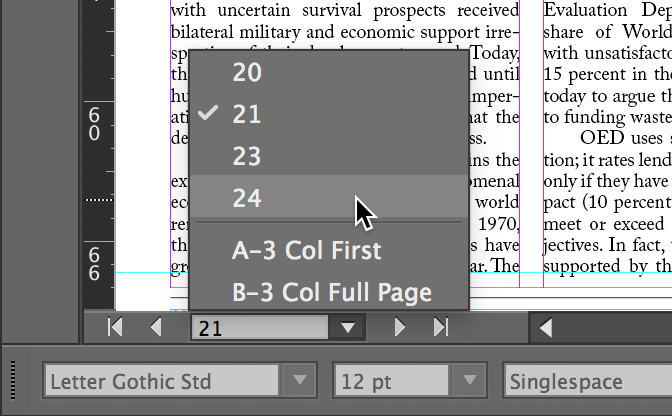
Page Navigation Options
Scroll Method
Use standard scrolling techniques to move between pages in continuous view
Page Menu Access
Locate the pages menu button at bottom left of your screen interface
Direct Page Selection
Click the pages menu and choose specific page for immediate navigation
Layout Navigation Mastery
Builds muscle memory for faster workflow
Eliminates need for constant tool switching
Enables quick multi-page document navigation
Choose optimal method for different situations
Use appropriate method based on current task