Topics Covered in This Figma Tutorial:
Exporting Individual Assets, Exporting Frames (artboards)
Exercise Preview
Exercise Overview
In this exercise, you'll master the essential skill of exporting graphics from Figma for web implementation. Understanding proper export workflows is crucial for maintaining design fidelity when your designs transition from concept to production. You'll learn to optimize different asset types using the most appropriate formats, ensuring your designs perform seamlessly across various devices and screen densities.
File Access Methods
Desktop App Navigation
Click the Home tab or use File > Open File Browser to access your file library
Web App Navigation
Click Main menu button and choose Back to files to return to file browser
File Import Process
Use Import file button to upload local files, navigate to Desktop > Class Files > Figma Class > Pulse
Opening or Uploading the File
If you still have Pulse—Prototyping Done.fig open from the previous exercise, you can skip ahead to the export section. Otherwise, follow these steps to open the file:
Navigate to Figma's home screen (file browser) using the method appropriate for your platform:
- In the Desktop app: Click the
 Home tab (Mac users can also choose File > Open File Browser).
 - In the Web app: Click the Main menu button
 and choose Back to files.
- In the Desktop app: Click the
If you previously uploaded the file, double–click on Pulse—Prototyping Done to open it.
If you haven't uploaded the file yet, click
 Import file (located near the top right). Then navigate to Desktop > Class Files > Figma Class > Pulse and double–click on Pulse—Prototyping Done.fig to open it.
Exporting Vector Graphics As SVG
Vector graphics like logos and icons should always be exported as SVG files when possible. SVG format maintains crisp edges at any scale and typically produces smaller file sizes than raster alternatives, making them ideal for modern responsive web design.
- At the top of the Home Page frame, select the black navbar to begin isolating the logo element.
- Zoom to the selection by pressing Shift–2 for better precision in your selection.
- Now we'll target the specific logo element within the navbar structure.
- In the Layers panel, click on Pulse logo (nested within the Home Page frame).
- The layer name becomes your exported filename, so proper naming is essential for organized asset management. Double–click on the Pulse logo name to edit it.
- Rename it to pulse-logo using web-friendly naming conventions (lowercase with hyphens), then press Return (Mac) or Enter (Windows) to confirm.
- Ensure the logo remains selected before proceeding to export settings.
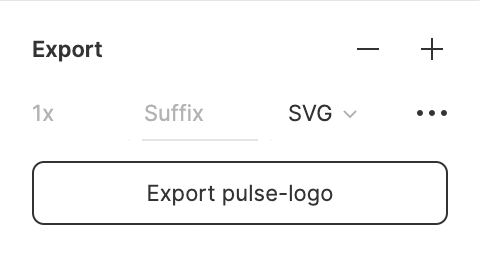
- In the Design panel, locate the Export section and click the Plus(+) button (scroll down if the Export section isn't immediately visible).
- Click the file format dropdown menu (currently displaying PNG) and select SVG for optimal vector output.
Click the Export pulse-logo button to generate your file.
- Web app users: The file downloads automatically to your Downloads folder.
- Desktop app users: You'll be prompted to choose a save location. Navigate to Desktop > Class Files > Figma Class > Pulse > Web Assets and click Save.
Professional Tip: When multiple elements are selected simultaneously, Figma exports each as a separate file using their respective layer names. This batch export capability can significantly streamline your workflow when preparing multiple assets.
The layer name becomes the exported file name. Use web-friendly names with dashes instead of spaces (e.g., pulse-logo instead of Pulse logo) to ensure compatibility across all web servers and platforms.
SVG Export Checklist
Ensures precise selection of the intended graphic element
Prevents file naming conflicts and improves organization
SVG maintains vector quality at any scale
Maintains organized file structure for web development
Exporting Pixel-Based Graphics As JPEG
Photographs and complex imagery with many colors compress most efficiently as JPEG files. However, JPEG doesn't support transparency, so reserve this format for images with solid backgrounds or those that will be cropped to rectangular bounds.
- Select the hero image positioned below the black navbar (the background photo behind the New Autumn Attire text).
- In the Layers panel, double–click the feature photo layer name to edit it.
- Web-optimized filenames require consistent formatting. Change the space to a hyphen, making it feature-photo, then press Return (Mac) or Enter (Windows) to apply the change.
- In the Design panel's Export section, click the Plus(+) button to add an export option.
- Change the file format from the default PNG to JPG using the format dropdown.
- Click the Plus(+) button again to add a second export option for high-density displays.
The system adds a 2x export automatically, but you'll need to manually change its format to JPG to match your first export.
Note: If you only need the 2x version, you can modify the single export from 1x to 2x instead of creating multiple exports. Many modern workflows skip 1x entirely, as 2x provides excellent quality across all devices.
Click the Export feature-photo button to generate both resolution variants.
- Web app: Files download to your Downloads folder.
- Desktop app: Choose your save location, ideally Desktop > Class Files > Figma Class > Pulse > Web Assets, then click Save.
Let's examine the exported results. Keep Figma open but switch to your file system (Finder on Mac or Windows Explorer on Windows).
- Web app users: Navigate to your Downloads folder.
- Desktop app users: Go to Desktop > Class Files > Figma Class > Pulse > Web Assets.
Observe these important distinctions in your exported files:
- The feature-photo exported in both 1x and 2x resolutions to accommodate different screen densities.
- The pulse-logo SVG renders at full screen resolution automatically, eliminating the need for multiple size variants—one of the key advantages of vector graphics.
When you have multiple elements selected, each will be exported separately using their individual layer names for file names. This enables batch processing of multiple assets.
1x vs 2x Export Strategy
| Feature | 1x Resolution | 2x Resolution |
|---|---|---|
| File Size | Smaller | Larger |
| Display Quality | Standard screens | High-DPI screens |
| Web Performance | Faster loading | Better quality |
| Best Use Case | Standard displays | Retina/4K displays |
Exporting & JPEG Quality
Figma's JPEG export uses predetermined quality settings that you cannot customize directly within the application. For projects requiring precise file size control or specific compression levels, export as PNG first, then process through Photoshop or other image optimization tools.
Understanding compression strategy is crucial for web performance. A 2x image contains four times the pixel data of its 1x counterpart but displays at the same physical size on screen. This pixel density difference allows for more aggressive compression on 2x images while maintaining visual quality.
Optimal compression approach for professional workflows:
• 1x images: Use higher quality settings (such as 60-80% in Photoshop) to prevent visible artifacts at standard viewing sizes.
• 2x images: Apply more aggressive compression (30-50% in Photoshop) since compression artifacts become less noticeable when pixels are effectively halved in display size.
This strategy can reduce file sizes by 40-60% while maintaining excellent visual fidelity across all device types. Many teams now standardize on 2x-only workflows, simplifying asset management while ensuring universal compatibility.
Figma cannot set JPEG quality levels. For file size control, export as PNG first, then use Photoshop to create optimized JPEG versions with custom compression settings.
2x Image Compression Strategy
Recommended JPEG Quality Settings
| Feature | 1x Images | 2x Images |
|---|---|---|
| Photoshop Quality | 60% | 30% |
| Compression Level | Conservative | Aggressive |
| File Size Impact | Larger per pixel | Smaller per pixel |
| Visual Quality | Direct viewing | Scaled down display |
Exporting Pixel-Based Graphics As PNG
PNG format excels when you need to preserve transparency or when working with graphics that have sharp edges and limited color palettes. Unlike JPEG, PNG uses lossless compression, making it ideal for screenshots, UI elements, and any image requiring a transparent background.
- Switch back to the Figma application or browser tab.
Return to Figma's home screen using your platform's appropriate method:
- Desktop app: Click the Home tab (Mac users can also access via File > Open File Browser).
- Web app: Click the Main menu button and select Back to files.
- Desktop app: Click the
If you have iTastify Design Done available from a previous exercise, double–click to open it.
If the file isn't available, follow these steps to import it:
- Click Import file (typically located near the top-right corner).
- Navigate to Desktop > Class Files > Figma Class and double–click iTastify Design Done.sketch. Note that Figma seamlessly imports Sketch files, maintaining most design elements and layer structures.
- After the upload completes, click Done and double–click the file to open it.
- If prompted about missing fonts, select Arial as a replacement, or continue without font substitution since we're focusing solely on graphic elements.
- Click
Locate the hand holding an iPhone near the top of the frame. This image requires transparency preservation for proper integration with the webpage's background pattern. Since JPEG doesn't support transparency, PNG is the only viable option for this asset type.
The image is nested within multiple groups. Hold Cmd (Mac) or Ctrl (Windows) while clicking directly on the hand holding the iPhone to select through the group hierarchy.
- With the photo selected, navigate to the Design panel's Export section and click the Plus(+) button.
- Confirm that the file format dropdown displays PNG—this is the default and correct format for transparent graphics.
- Add a high-resolution variant by clicking the Plus(+) button again, creating the essential 2x export for Retina and high-DPI displays.
Click the Export iphone-hand-mockup button to generate both resolution variants.
- Web app: Files automatically download to your Downloads folder.
- Desktop app: When prompted, navigate to Desktop > Class Files > Figma Class > Pulse > Web Assets and click Save to maintain organized asset management.
- Close this file to return to the main workspace, keeping your project organized and preventing confusion between different design files.
Figma can open and work with Sketch files seamlessly. When importing Sketch files, you may encounter missing font warnings, but you can substitute with Arial or ignore for graphics-only work.
When to Choose PNG Over JPEG
Transparency Requirements
PNG supports transparent backgrounds essential for layered web compositions. JPEG cannot preserve transparency channels.
Composite Graphics
Images that need to blend with background patterns or colors require PNG format to maintain visual integration.
UI Elements
Interface components like buttons, icons with shadows, or decorative elements benefit from PNG transparency support.
Exporting All Marked Assets in One Pass
Professional workflows often involve exporting dozens of assets across multiple formats and resolutions. Rather than exporting each asset individually, Figma's batch export feature enables you to process all marked assets simultaneously, dramatically improving efficiency and reducing the likelihood of missed exports.
- Access the batch export feature by clicking the Main menu and selecting File > Export (Mac users can access this via the top menu bar's File > Export).
The Export panel displays all assets you've marked for export across your entire document. Review the list carefully, unchecking any assets you don't need for the current export batch. When ready, click Export to process all selected items.
- Web app: Multiple files are automatically zipped and sent to your Downloads folder. You'll need to unzip the archive to access individual assets.
- Desktop app: You'll be prompted to select a destination folder for all exported files, maintaining your organized asset structure.
Professional Tip: Establish a consistent export routine by marking all assets for export during the design phase, then using batch export at project milestones. This prevents the common issue of discovering missing assets during development handoff.
Batch Export Process
Mark All Assets
Set export formats and resolutions for all desired assets before initiating batch export
Access Export Menu
Use Main menu > File > Export or File menu > Export to open batch export panel
Review and Execute
Uncheck unwanted items in export panel, then click Export to process all marked assets
Web app users receive multiple files as a zip download that requires extraction. Desktop app users can choose the destination folder for direct file placement.
Optional Bonus: Exporting Frames (Artboards) As PDF
While Figma's collaborative sharing features represent the modern standard for design handoffs, PDF exports remain valuable for client presentations, design documentation, and offline reviews. Multi-page PDFs provide a comprehensive view of your design system that stakeholders can review without requiring Figma access.
- If you closed the Pulse—Prototyping Done file, reopen it to access the complete frame structure.
- Click on an empty area of the canvas to ensure no individual elements are selected—this ensures all frames are included in the PDF export.
Access the PDF export function by clicking the Main menu
and selecting File > Export frames to PDF (Mac users can access this via the menu bar's File > Export frames to PDF).- Web app: The PDF generates automatically and downloads to your Downloads folder.
- Desktop app: You'll be prompted to choose a save location. Navigate to Desktop > Class Files > Figma Class > Pulse > Web Assets and click Save to keep your project assets organized.
- Return to the Web Assets folder on your Desktop to examine the exported PDF.
- Double–click the PDF file to open it in your default PDF viewer and explore its structure.
- Navigate through the PDF pages to verify that each Figma frame has been converted to a separate page, maintaining the logical flow of your design sequence.
- Close the PDF viewer when you've finished reviewing the export quality and page organization.
- Return to Figma to continue with your next design tasks.
- Close the Figma file to maintain workspace organization and optimize application performance.
PDF Export vs Online Sharing
| Feature | PDF Export | Figma Online Sharing |
|---|---|---|
| Best Use Case | Client presentations | Developer handoff |
| Interactivity | Static pages only | Interactive prototypes |
| File Management | Downloadable file | Live web link |
| Update Process | Re-export required | Automatically updated |