Topics Covered in This AutoCAD Tutorial:
Move, Copy, Rotate, Scale, & Mirror
Advanced Modification Techniques
Scale
Resize objects proportionally using scale factors. A factor of 0.25 shrinks to quarter size, while 2.0 doubles the dimensions.
Mirror
Create symmetrical copies across a mirror line. Define two points to establish the reflection axis for balanced designs.
Blocks behave as single objects with one grip, making them incredibly easy to move and manipulate. The grip turns red when selected, indicating it's 'hot' and ready for editing.
Exercise Preview

File Setup Process
Open Drawing File
Launch the Modify-Office.dwg file and zoom in on the brown rectangle representing the table
Initialize Move Tool
Start the Move command, select the rectangle, and establish the midpoint of the top edge as your base point
Position Object
Move cursor to upper wall and click midpoint between door and right corner to complete the move operation
Modifying Objects in a File
Mastering AutoCAD's core modification tools is essential for efficient drafting workflows. This hands-on exercise will guide you through the five fundamental commands that form the backbone of object manipulation in AutoCAD. You'll practice these tools in a realistic office layout scenario, building muscle memory for the precise techniques that separate proficient users from beginners.
Open the file Modify-Office.dwg.
Zoom in on the brown rectangle representing a table. Start the Move tool
 and click to select the rectangle. Press Enter to end the selection stage. When the Specify Base Point prompt appears in the command line, snap and click on the midpoint of the table's top edge to establish your base point. This base point acts as the "handle" for your move operation—choosing it strategically ensures predictable placement. Move the cursor upward to the right side of the upper wall, and you'll see the table following the cursor while maintaining its position relative to the base point.

Click on the midpoint between the door and the right corner on the lower edge of the upper wall. The base point will snap to this midpoint, positioning the table centrally in the upper wall space between the door and the office's right edge. The Move tool will complete automatically once you specify the destination point.

Click on the coffee maker to select it. Notice that the coffee maker is a block—a grouped collection of objects that behaves as a single entity with one grip point. This design makes blocks exceptionally efficient for manipulation in complex drawings. Click the grip on the coffee maker to make it "hot" (turning red), which activates the grip as your base point. With the hot grip active, you can drag the coffee maker directly without invoking a separate command. Position the coffee maker anywhere on the table that seems logical for your office layout.

Launch the Copy command
 . Select the large fern and press Enter to end selection. Establish a base point near the fern's center. Initially, the Copy command appears identical to Move, but the key difference emerges when you specify your destination point—instead of relocating the original, Copy creates a duplicate while preserving the source object. Click to create two copies of the fern, positioning them strategically on either side of the office entrance to create a welcoming, professional atmosphere. Press Enter to complete the command.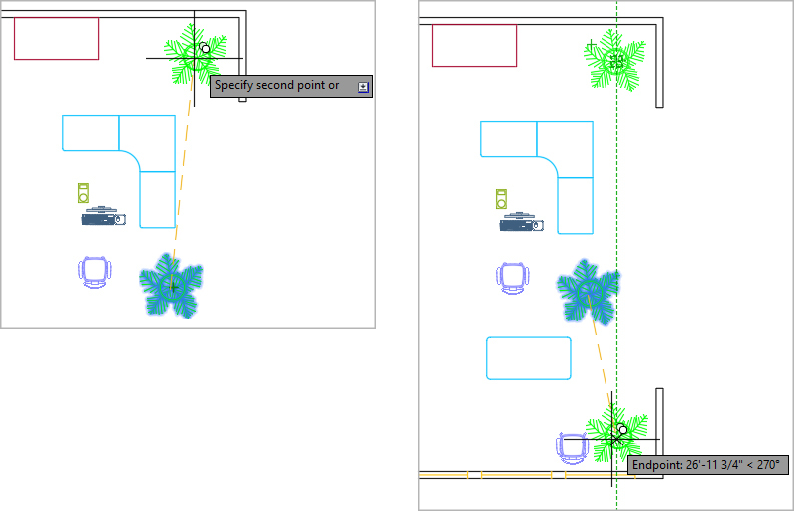
Select the corner desk by clicking on it. Activate its grip by clicking to turn it red, then move the desk to the right cubicle. Use object snapping to precisely position the desk at the upper-right corner endpoint of the cubicle's inner wall—this demonstrates the importance of snap points for achieving professional-grade precision in your drawings. Press Escape to deselect the desk once positioned.

Start the Copy tool
and select the swivel chair. Specify a base point and create a copy of the chair, positioning it appropriately in front of the corner desk. This workflow—copying furniture rather than redrawing—exemplifies efficient CAD practices that save time on repetitive elements.
Initiate the Rotate command
 . If the swivel chair isn't still selected, click on it and press Enter. Use the Geometric Center snap to place your base point at the center of the seat cushion—this ensures the chair rotates around its natural center rather than an arbitrary point. When prompted to specify a rotation angle, you can either type a precise value or use your mouse with polar tracking. Ensure your incremental polar tracking angle is set to 45°, then rotate the chair 45° clockwise by snapping to the polar tracking line. This technique demonstrates how polar tracking provides both precision and speed in angular operations.
Now you'll employ Object Tracking to achieve perfect alignment—a technique that distinguishes professional CAD work from amateur attempts. Select the swivel chair and activate its grip. Without clicking, hover over the midpoints of both the top and side desktop edges to establish tracking lines. Position the chair precisely where these tracking lines intersect, centering it perfectly with the desk. This method eliminates guesswork and ensures geometric accuracy in your furniture placement.

With your desk and chair properly positioned in one cubicle, you'll use the Mirror command
 to create symmetrical copies in the adjacent cubicle. Start the Mirror command and select both the desk and chair, then press Enter. Unlike other modification tools that use a single base point, Mirror requires two points to define the reflection axis. Click on a horizontal midpoint or geometric center point within the middle wall of the cubicles for your first point. Pull the cursor vertically and snap to the tracking line, ensuring perfect perpendicularity. Click anywhere along this vertical tracking line for your second point. When prompted whether to erase source objects, press Enter to accept the default "No"—this preserves your originals while creating mirrored duplicates.
Expand your mirroring technique to duplicate entire cubicle assemblies. Press Enter to repeat the Mirror command. Select both complete cubicles, including all furniture and partitions—this comprehensive selection demonstrates how Mirror can handle complex, multi-object arrangements efficiently. Establish your first mirror line point by clicking any midpoint of the vertical lines within the top partition. Create a horizontal polar tracking line by pulling the cursor left or right, then click anywhere along this line to complete the mirror axis. Press Enter to duplicate the cubicles while preserving the originals.

TIP: Click on the midpoints of any vertical lines in the top partition for the first point of the Mirror Line so that you can use Polar Tracking to make a Mirror Line that horizontally divides the top partition.

TIP: Click at any point on the horizontal tracking line to establish the second point on the Mirror Line and create mirrored copies of the cubicles.
Continue the systematic duplication process with another Mirror operation. Press Enter to repeat the Mirror command
. Select all four existing cubicles along with their complete furniture sets and partitions. This time, establish your first mirror point on any midpoint of the horizontal lines within the rightmost partition. Pull the cursor up or down to create a vertical polar tracking line, then click anywhere along this line to define your mirror axis. Press Enter to maintain the source objects while creating the mirrored copies. This systematic approach to office layout demonstrates how powerful AutoCAD's modification tools become when used strategically.
TIP: Click on the midpoints of any horizontal lines in the right partition for the first point of the Mirror Line so that you can use Polar Tracking to make a Mirror Line that vertically divides the partitions.

TIP: Click at any point on the vertical tracking line to establish the second point on the Mirror Line and create mirrored copies of the cubicles.
The Mirror operations have created overlapping lines where partition walls intersect—a common occurrence in complex CAD work that can cause plotting and performance issues. Launch the Overkill command
 to clean up these redundant elements. Select all cubicles and press Enter. Accept the default settings in the Overkill dialog box and click OK. This powerful cleanup tool removes duplicate geometry while preserving the drawing's visual integrity—an essential practice for maintaining professional drawing standards and file efficiency.
Navigate to the large conference table area. Press Enter to repeat the Mirror command
. Use a crossing selection window (the green selection box) to efficiently select the entire row of chairs positioned to the right of the table, then press Enter to finalize your selection. Click on the midpoint of either the top or bottom edge of the conference table, then establish the second point along the vertical polar tracking line to create your mirror axis. Press Enter to duplicate the chair arrangement, creating a symmetrical seating layout around the conference table.
Pan to locate one of the large ferns you copied earlier. Launch the Scale command
 . Select the fern and press Enter to complete the selection. Click near the plant's center to establish your base point—this point remains stationary while the object scales around it. Enter a Scale Factor of 0.25 to reduce the plant to one-quarter its original size. Scale factors less than 1.0 shrink objects, while factors greater than 1.0 enlarge them. This smaller plant will work better for interior accent placement.
Apply your mastery of the Move
, Rotate , and Grip editing techniques to arrange the reception area furniture. Position the chair, desk, computer, and small fern as shown in the reference image below. Pay particular attention to alignment—ensure that the midpoints of both the desk and chair align with the midpoint of the cubicle partitions for a professional, organized appearance that reflects real-world office design standards.
Save the file and keep it open for the next exercise. You've now demonstrated proficiency with AutoCAD's five core modification commands—skills that form the foundation of efficient drafting workflows in professional practice.
Move Command Workflow
Press Enter to confirm selection and proceed to base point specification
Use midpoint or other object snaps for accurate reference positioning
Object follows cursor movement relative to the established base point
Use object snaps at destination for precise placement and command completion
The coffee maker is a block - a group of objects that behaves as a single unit. Blocks have only one grip, which turns red when selected and acts as the base point for easy manipulation.
Copy Command Execution
Initialize Copy Tool
Start Copy command and select the large fern object for duplication
Set Base Point
Click near the center of the fern to establish the reference point for copying
Create Multiple Copies
Click twice to create 2 copies on either side of the office entrance, then press Enter to end
Set incremental Polar Tracking angle to 45 degrees. This allows precise rotation by snapping to polar tracking lines instead of typing exact angle values.
Object Tracking Alignment
Select and Grip Object
Click the swivel chair and activate its grip by clicking until it turns red
Generate Tracking Lines
Snap to midpoints of desk edges without clicking to pull tracking lines from both directions
Position at Intersection
Place chair where tracking lines meet to achieve perfect center alignment with the desk
Unlike other modify tools that use a single base point, Mirror requires two points to define the mirror line. The second point can be anywhere along the tracking line direction.
Mirror Command Process
Select Objects for Mirroring
Choose desk and chair, then press Enter to end selection stage
Define First Mirror Point
Click on horizontal midpoint or geometric center within the middle wall of cubicles
Establish Second Mirror Point
Pull cursor vertically and click any point on the tracking line to complete mirror line definition
Confirm Duplication
Press Enter to select 'No' for erasing source objects, creating mirrored copies while keeping originals
When mirroring cubicles, click midpoints of vertical lines for horizontal mirror lines, and midpoints of horizontal lines for vertical mirror lines. This ensures proper division of partitions.
Mirroring cubicles creates overlapping lines in partitions. Use the Overkill command to select all cubicles and remove repetitive overlapping geometry automatically.
Scale Command Application
Select Object for Scaling
Start Scale command, select the large fern, and press Enter to finish selection
Establish Scale Base Point
Click near the center of the fern to set the point around which scaling will occur
Apply Scale Factor
Enter 0.25 as the scale factor to shrink the plant to one-quarter of its original size