Topics Covered in This After Effects Tutorial:
Advanced compositing techniques, professional color matching workflows, and mastery of the Lumetri Color effect for seamless integration
Exercise Preview
This exercise focuses on the critical post-keying phase where separate video elements must be color-matched to create believable composites. You'll work with a woman talking on phone footage that requires seamless integration with background elements.
Exercise Overview
In this hands-on exercise, you'll master the art of color matching by adjusting your foreground video elements to seamlessly integrate with background footage. This technique is essential for professional compositing work, whether you're combining green screen footage, stock video elements, or mixed-source content that needs to appear as a unified scene.
Color Matching Workflow Overview
Analyze Color Differences
Identify tonal and color disparities between foreground and background elements that were shot under different lighting conditions
Apply Targeted Color Correction
Use tint effects with eyedropper sampling to match shadow and highlight tones between composite layers
Unify with Creative Grade
Apply an overall color look using Lumetri Color to blend all elements together and establish visual cohesion
Previewing the Final Video
- Let's examine the final result before diving into the workflow. If you're currently in After Effects, keep it open but switch to your Desktop to access the reference files.
- On the Desktop, navigate to Class Files > After Effects Advanced Class> Greenscreen Removal > Preview Movie and double–click Woman Talking on the Phone.mp4 to launch the preview.
As you watch, analyze the following compositional elements:
- Notice how two distinctly shot video sources have been seamlessly composited together, creating the illusion of a single, cohesive scene.
Replay the video to study the color relationships between elements, then close it when you've absorbed the visual targets we'll be achieving.
Now that you've seen the professional standard we're aiming for, let's set up your workspace for optimal efficiency.
Setting up the Workspace
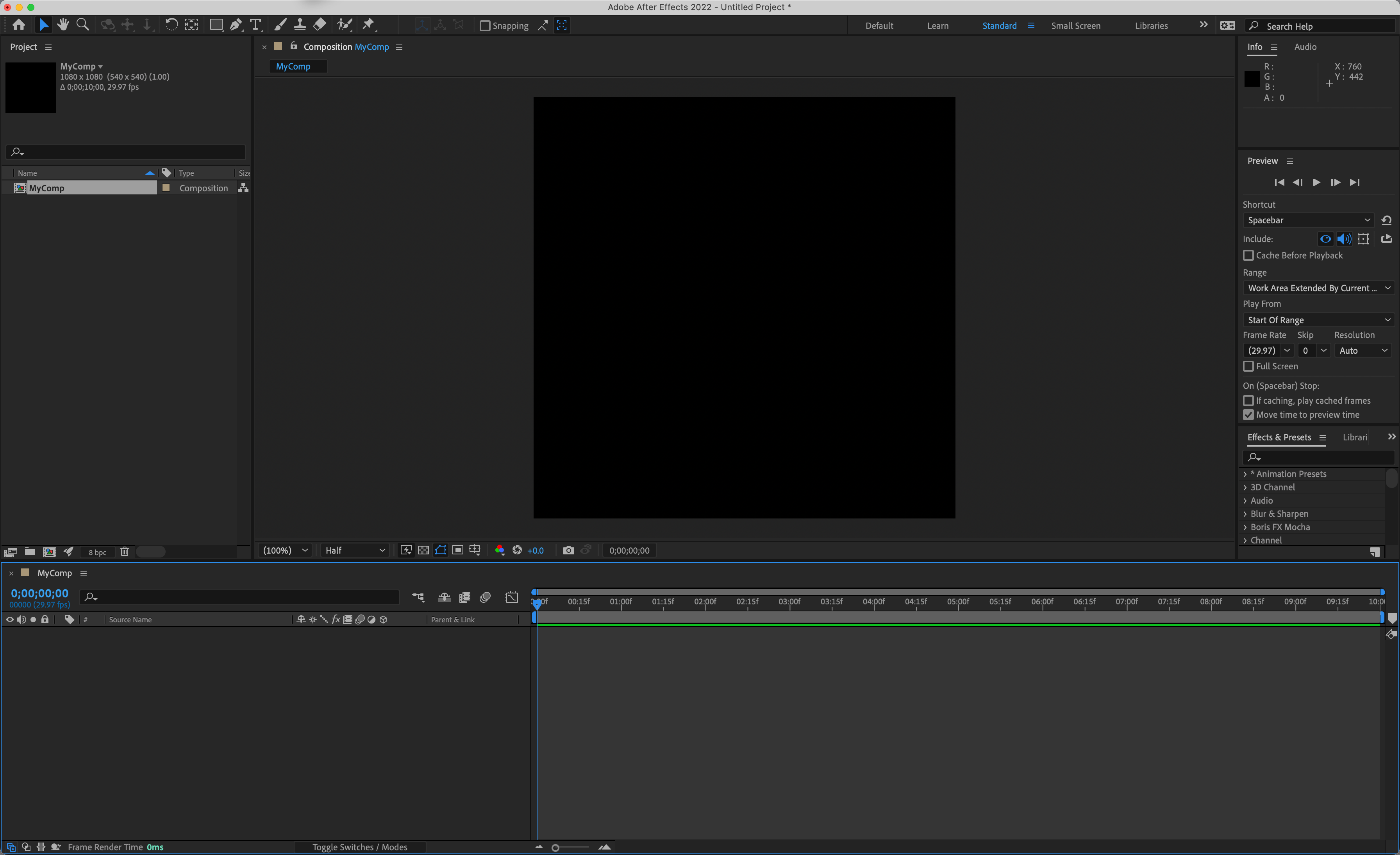
In After Effects, navigate to Window > Workspace > Standard to establish a clean working environment.
Choose Window > Workspace > Reset "Standard" to Saved Layout to ensure all panels are in their default positions for this tutorial.
Maximize your workspace for optimal visibility and control access:
Mac: At the top left of the window, click the green button (the third button). Windows: At to the top right of the window, click the Maximize button (the middle button).
With your workspace optimized, let's open the project file and prepare for the color matching workflow.
Workspace Preparation Checklist
Ensures consistent panel arrangement and optimal workflow efficiency
Provides maximum screen real estate for detailed color work and timeline management
Confirms Effect Controls and Timeline panels are properly positioned for color correction workflow
Getting Started
In After Effects, if you have a project currently open, choose File > Save to preserve your previous work.
Choose File > Open Project and locate the starting composition:
- Navigate to Desktop > Class Files > After Effects Advanced Class > Greenscreen Removal > Finished Projects.
- Double–click on Greenscreen Removal—Keyed.aep to open the pre-keyed composition that serves as our starting point.
Immediately save your working copy to avoid overwriting the original:
- Choose File > Save As > Save As
- Name the file Your Name—Greenscreen.aep and
- Save it into Desktop > Class Files > After Effects Advanced Class> Greenscreen Removal for easy access.
Now you're ready to begin the color matching process. The first technique involves using tonal adjustments to create visual cohesion between disparate elements.
Always save your original project before beginning color work, then create a new version with your name. This preserves the original keyed composite while allowing you to experiment with color adjustments safely.
Adjusting Color and Tone with Tint
The foreground and background elements in professional composites are almost invariably captured with different cameras, lighting setups, and environmental conditions. In 2026's hybrid production workflows, you might be combining smartphone footage with cinema cameras, or integrating AI-generated backgrounds with live-action elements. Regardless of source, making precise tonal adjustments is crucial for selling the illusion that all elements exist in the same visual space and were captured under identical lighting conditions.
Create an Adjustment Layer above the background layer in your composition by choosing Layer > New > Adjustment Layer. This non-destructive approach allows you to analyze colors without permanently altering your source footage.
Add the Gaussian Blur effect to the adjustment layer to create a reference for dominant color tones.
Increase the Blurriness property substantially until the background colors merge into broad tonal regions, creating what essentially becomes a custom color reference chart showing light and dark value zones.
Add the Tint effect to your foreground layer to begin the color matching process.
Activate the Tint effect's black pipette (eyedropper tool) and sample the darkest tonal area visible in the blurred background layer.
Activate the Tint effect's white pipette (eyedropper tool) and sample the brightest area in the blurred background layer to establish the tonal range.
Delete the Gaussian Blur effect from the Adjustment layer, as it has served its purpose as a color sampling aid.
While tint adjustments provide a solid foundation, modern color grading techniques offer more sophisticated tools for achieving seamless integration. Let's explore how professional colorists unify composite elements.
Tint Effect Color Matching Process
Create Analysis Layer
Add adjustment layer with Gaussian Blur to isolate background color information and identify key tonal areas
Sample Shadow Tones
Use Tint effect's black eyedropper on foreground layer to sample darkest background areas for shadow matching
Sample Highlight Tones
Use white eyedropper to sample brightest background areas, establishing highlight correspondence between layers
Clean Up Workflow
Remove temporary Gaussian Blur effect after sampling to restore clean background detail
The Gaussian Blur technique is essential for accurate color sampling. It merges background colors into readable tone patches, eliminating detail that could lead to inaccurate eyedropper readings and poor color matches.
Applying a Color Look to Hold It All Together
Even with careful color correction, subtle differences between composite layers can still betray the illusion of unified footage. Professional colorists routinely apply cohesive color looks—either subtle or stylized—to blend disparate elements and create visual harmony. This technique has become increasingly important as content creators work with footage from multiple sources, including drone cameras, action cameras, smartphones, and traditional cinema equipment.
In the Timeline panel, reposition the adjustment layer to the top of the layer stack and rename it Color Grade for clear project organization.
Add the Lumetri Color effect to the adjustment layer. Lumetri Color remains the industry standard for professional color work in After Effects, offering the same tools used in high-end color suites.
In the Effect Controls panel, locate the Creative section of the Lumetri Color effect, which houses the stylistic color grading tools.
Select your desired aesthetic from the Look menu, which contains professionally crafted color treatments suitable for various genres and moods.
NOTE: The Browse option in the Look menu allows you to load custom LUT files or looks created in DaVinci Resolve, Premiere Pro, or other professional color grading applications, ensuring consistency across your entire post-production pipeline.
Save your file to preserve this professional color matching workflow for future reference and potential client revisions.
Lumetri Color Creative Options
Built-in Look Presets
Choose from professionally designed color grades that instantly unify composite layers. Each look applies consistent color treatment across all elements.
Custom Look Files
Import your own LUT files using the Browse option for branded or project-specific color treatments. Maintains consistency across multiple compositions.
Position the Color Grade adjustment layer at the top of your stack to ensure the creative look affects all composite elements equally. This creates the final unifying treatment that makes separate elements appear as a cohesive scene.